How to Download EC Certificate on TNREGINET Update 2026
If you want to download an Encumbrance Certificate on TNREGINET, the good news is that Tamil Nadu’s official registration portal already offers a free EC view/download option on its homepage. For many users, that is the fastest way to check property records online. If you need a more formal EC through the online application route, you may need to sign in, apply, pay, and then download it after processing.
Simple Guide to Download EC Certificate
To download EC on TNREGINET, go to the official portal, open the Encumbrance Certificate or Search/View EC section, enter the property details, search for the record, and then download the available EC. The portal also separately shows Certified Copy and View/Download Encumbrance Certificate @ Free of Cost, which means users should not confuse the free EC view with the formal paid workflow.
You can also read: TNREGINET Certificate Download Not Working? Easy Fixes 2026
What you need before downloading EC
Before you start, keep these details ready:
Current TNREGINET guides consistently show that EC search works best when these details are entered correctly.
How to download EC certificate on TNREGINET
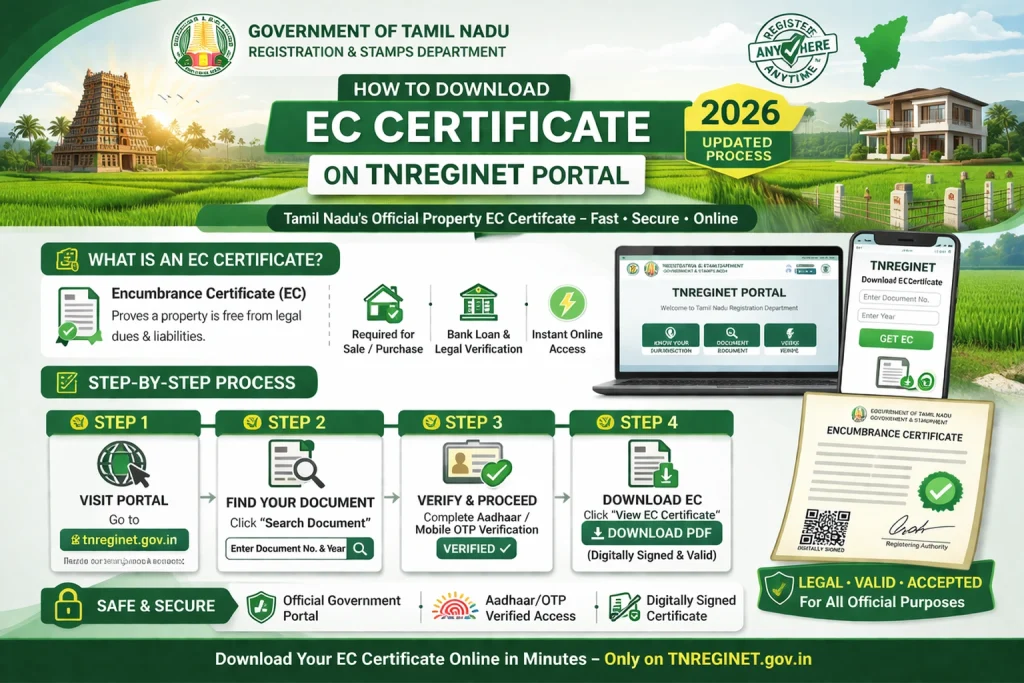
Step 1: Visit the official TNREGINET website
Open the Tamil Nadu Registration Department portal. The homepage clearly shows Encumbrance Certificate, Search/View EC, and View/Download Encumbrance Certificate @ Free of Cost as public-facing services.
Step 2: Open the EC search option
On the portal, go to the EC section. Current guides describe the path as E-Services > Encumbrance Certificate > View EC or using the homepage’s Search/View EC route.
Step 3: Enter the property details
Fill in the property information carefully. Common fields include zone, district, Sub-Registrar Office, village, survey number or document number, and the time period you want to search.
Step 4: Search for the EC
After entering the details, click search. The system should display the documents or EC-related results that match your entries. If the details are wrong, the result may be blank or incomplete.
Step 5: View and download the EC
Once the correct result appears, use the download option available on the portal. TNREGINET’s official homepage explicitly advertises View/Download Encumbrance Certificate @ Free of Cost, so this is the normal route for basic online EC access.
If you need a more formal EC download
Sometimes users do not just want to view the EC. They want a downloadable EC through the application workflow.
In that case, a current TNREGINET guide explains the process like this: register or sign in, go to E-services > Encumbrance Certificate > Search and Apply EC, enter the property details, click search, choose Apply Online, add your contact details, and proceed to payment.
After payment and processing, the downloadable EC can be made available through the request or application list inside the portal. Housing’s current guide says the digitally signed online EC can be downloaded from the Request List tab after the application is completed and paid.
Free EC download vs applied EC download
This is where many users get confused.
The official TNREGINET portal separately highlights:
That means there is a clear difference between the quick free EC access and the more formal online application workflow. If you just want to check the property record online, the free EC route is usually enough. If you need a more formal downloadable record for official use, the application route may be the better choice.
What to do if EC is not downloading
If your EC is not downloading on TNREGINET, check these things first:
make sure the survey number or document number is correct
confirm you selected the right Sub-Registrar Office
widen the date range
try again after checking the village and district details
if you applied online, check the payment or request status
Housing’s guide notes that users can check EC payment status on the portal through E-services > E-Payment > Payment > Payment status.
Helpful tip
If you are not sure about the correct SRO, use Know Your Jurisdiction on the official TNREGINET portal first. This can save a lot of time because many EC search failures happen simply because users select the wrong registration office.
How long does it take?
A current Housing guide says an online EC application in Tamil Nadu usually takes around two to five working days, while offline applications can take longer. So if you are using the application route instead of the free view route, some waiting time may be normal.
FAQs
Final Words
So, how do you download EC certificate on TNREGINET?
The easiest method is to open the official portal, go to Search/View EC or Encumbrance Certificate, enter the correct property details, search, and download the available EC. If you need the applied online version, sign in, use Search and Apply EC, complete payment, and then download the processed EC from the request list once it is ready.