How to Handle EC Certificate Errors on TNREGINET Portal 2026
While using TNREGINET to apply for or download an Encumbrance Certificate (EC), users sometimes encounter errors. These errors can range from login issues to incorrect property details or missing documents. Understanding how to handle them is crucial to ensure a smooth registration process and avoid delays.
Common EC Certificate Errors
Some of the frequent errors users face on TNREGINET include:
Invalid Survey Number:
Occurs when the property survey number is entered incorrectly or in the wrong format.
Application Not Found:
Happens if the application number is wrong or the EC has not been processed yet.
PDF Download Errors:
Users may see blank pages, corrupted files, or incomplete EC downloads.
Login or OTP Issues:
Problems with OTP delivery or expired login sessions.
Rejected Applications:
Occurs due to missing documents, incorrect property details, or discrepancies in records.
Recognizing the type of error helps in choosing the right solution.
You can also read: Tracking EC Certificate Status on TNREGINET: (Guide 2026)
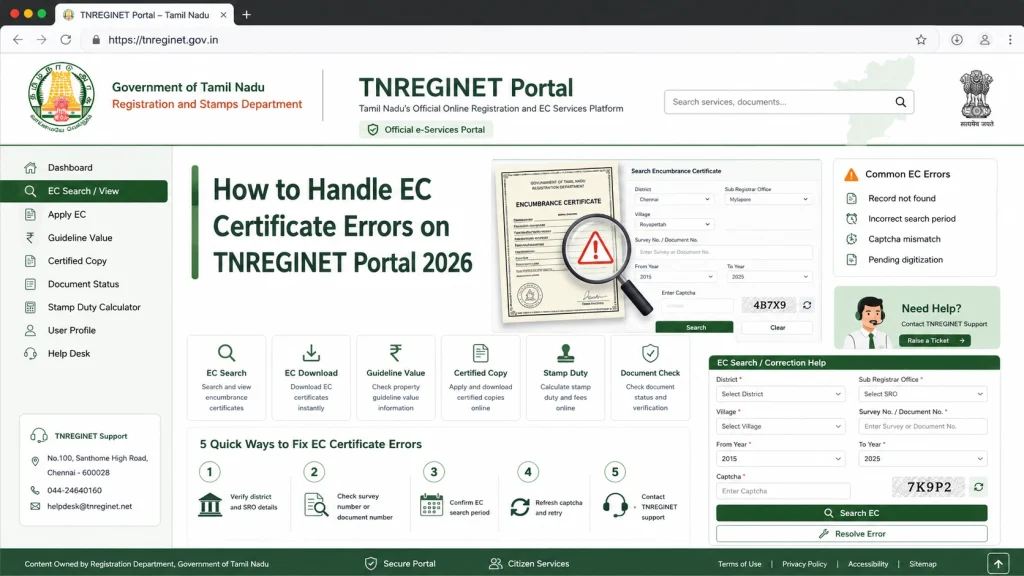
Steps to Resolve EC Errors
Follow these steps to handle common EC certificate errors:
Double-Check Property Details:
Verify survey number, district, sub-division, and property name. Correct any mistakes before resubmitting.
Check Application Number:
Make sure you enter the correct application number received after submission.
Re-login or Refresh Session:
Sometimes errors occur due to expired sessions. Log out and log in again, or refresh the browser.
Clear Browser Cache:
Cached data can prevent the portal from loading correctly. Clear the cache and try again.
Retry PDF Download:
If the EC PDF is blank or corrupted, try downloading again using a compatible browser.
Contact Sub-Registrar or Helpdesk:
If issues persist, reach out to the local sub-registrar office or TNREGINET support for guidance.
How to Avoid EC Errors
Enter Correct Details:
Always double-check property information before submission.
Keep Documents Ready:
Make sure all required documents are available before applying.
Use Recommended Browsers:
Use Chrome, Firefox, or Edge for the best compatibility.
Follow Submission Guidelines:
Pay attention to formats, dates, and required fields.
Regularly Track Status:
Monitor the EC application to catch issues early.
Preventing errors saves time and avoids frustration during registration.
Understanding Error Messages on TNREGINET
TNREGINET provides specific error messages for different issues. Knowing what they mean can help you fix them quickly:
“Invalid Input” – Check the survey number, district, or sub-division.
“Application Not Found” – Recheck your application number and submission date.
“Session Expired” – Log in again and restart the process.
“PDF Error” – Use a compatible browser and retry the download.
“Rejected” – Review the rejection reason and provide corrected documents.
Common Causes of Rejection
Understanding why applications get rejected can prevent repeated errors:
Being aware of these causes allows users to prepare properly before applying.
Table: Common EC Errors and Solutions
Error Type
Cause
Solution
Invalid Survey Number
Wrong format or typo
Verify survey number and enter correctly
Application Not Found
Incorrect application number
Check the number and re-enter
PDF Download Errors
Browser or session issues
Clear cache, use compatible browser, retry download
Login / OTP Issues
Expired session or wrong credentials
Re-login, check registered mobile/email for OTP
Rejected Application
Missing documents or wrong details
Contact sub-registrar, provide corrected documents
Best Practices for Smooth EC Applications
When to Seek Help from the Sub-Registrar
If repeated errors occur or you cannot resolve issues online, it is important to:
FAQs
Final Words
Handling EC certificate errors on TNREGINET is straightforward if you know the common issues and follow proper steps. Always double-check your property details, track your application status regularly, and reach out to the sub-registrar office when needed. Staying proactive ensures timely EC processing and smooth property transactions.