Common Errors While Searching EC on TNREGINET and Fixes 2026
The TNREGINET Portal is a valuable tool for property transactions in Tamil Nadu, allowing users to access important documents like the Encumbrance Certificate (EC). However, sometimes when you try to search for an EC, you may run into errors. These errors can be frustrating, especially when you need the EC for legal, financial, or property-related tasks.
In this article, we’ll look at some of the common errors people face while searching for an EC on the TNREGINET Portal and how you can fix them easily.
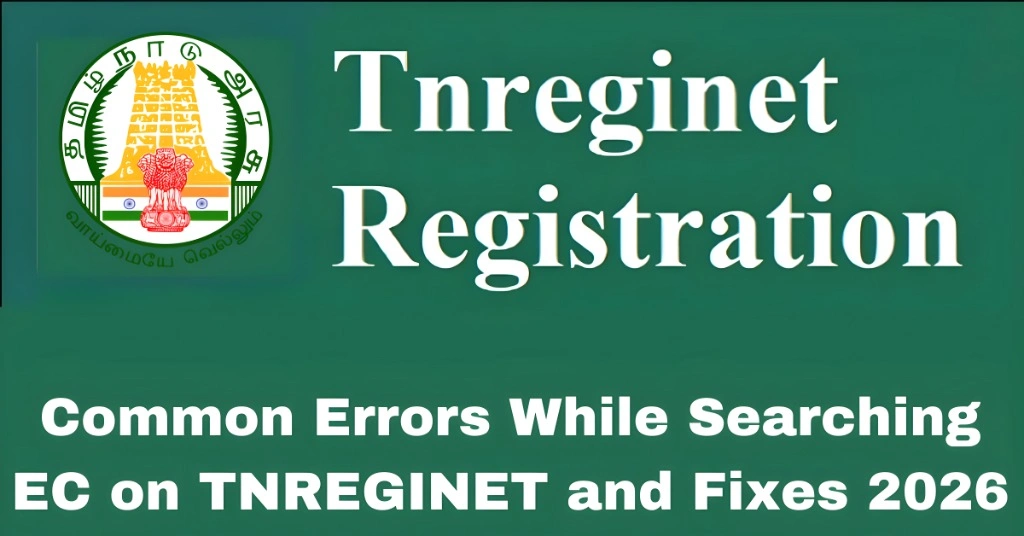
Error: “No Records Found”
What It Means:
This error typically occurs when the portal cannot find any records that match the details you entered. This can happen due to:
How to Fix It:
Double-check property details: Ensure that the Survey Number, District, SRO, and year are entered correctly.
Try alternative search methods: If you’re searching with the Street Name, try using the Survey Number instead.
Verify property information: Sometimes property details may have changed or been updated. Make sure the information matches the official records.
You can also read: How to Download Certified EC from TNREGINET Easily 2026
Error: “Session Expired” or “Login Error”
What It Means:
This happens when your session times out, or there’s a problem with your login details. It’s a common issue when you leave the TNREGINET page open for a while or enter the wrong login credentials.
How to Fix It:
Log in again: Simply log out and log back into your TNREGINET account.
Clear your browser’s cache: Clear your browser’s cache and cookies to ensure no outdated session data is causing the issue.
Use a different browser: Sometimes using Google Chrome or Mozilla Firefox resolves login issues. Avoid using older or unsupported browsers.
Error: “Invalid OTP”
What It Means:
When you try to log in or request an EC, TNREGINET sends an OTP (One-Time Password) to your registered mobile number. If the OTP is incorrect or not entered in time, this error can occur.
How to Fix It:
Request a new OTP: If you didn’t receive the OTP, click the “Resend OTP” button and check your phone number.
Enter the OTP quickly: OTPs expire in a few minutes, so enter them as soon as you receive them.
Ensure the correct phone number: Check that the phone number linked to your TNREGINET account is active and correct.
Error: “Property Details Mismatch”
What It Means:
This error occurs when the property details you entered (e.g., Survey Number, District, SRO) do not match the data in the TNREGINET database.
How to Fix It:
Verify the details: Double-check the Survey Number, District, and SRO. You can find the correct details from your property documents.
Check for typos: Even small typos in the Survey Number or Street Name can cause this error. Make sure everything is entered accurately.
Try different search criteria: If you’re searching by Street Name, try using the Survey Number instead.
Error: “Page Not Found” or “Server Error”
What It Means:
This error can occur when there is a problem with the TNREGINET server or when the page you’re trying to access doesn’t exist anymore. It can also happen if the server is temporarily down due to maintenance or high traffic.
How to Fix It:
Wait and try again: If the portal is undergoing maintenance or facing high traffic, wait a few minutes and try again.
Check official notifications: Sometimes, the TNREGINET Portal may be temporarily unavailable due to system upgrades or scheduled maintenance. You can check for notifications or news on their official website.
Clear browser cache: If the issue is specific to your browser, clearing the cache may resolve the error.
Error: “Data Not Available for Selected Time Period”
What It Means:
This error indicates that the EC records for the selected date range are not available. This may occur if the record you’re searching for is too old or if the data for that specific time period hasn’t been uploaded to the system.
How to Fix It:
Try a different time period: If you’re looking for an EC from a specific year, try adjusting the date range. For example, if you’re unable to find records for the last 5 years, expand the search to cover a broader period.
Verify the year: Check if the property has an EC for the year you’re looking for. Sometimes records may only be available for a particular period (e.g., from the last 10-30 years).
Error: “PDF Download Not Working”
What It Means:
Sometimes, after searching for the EC, you may encounter an issue where the PDF download link doesn’t work. This could happen due to browser compatibility issues or temporary server glitches.
How to Fix It:
Try a different browser: Sometimes, switching browsers (like from Safari to Google Chrome or Firefox) can resolve the issue.
Disable browser extensions: Certain extensions (like ad blockers or security software) may block file downloads. Try disabling these extensions and then downloading the PDF.
Check your internet connection: A slow or unstable internet connection might prevent the PDF from downloading. Ensure you have a stable connection.
Error: “Invalid Captcha”
What It Means:
This error occurs when the Captcha verification fails, usually due to incorrect typing or browser issues. Captcha is a security measure to verify that you’re not a bot.
How to Fix It:
Re-enter the Captcha: Make sure to carefully type the letters or numbers exactly as shown.
Refresh the Captcha: If the Captcha is unclear or difficult to read, you can click the refresh icon to get a new one.
Use a different browser: Some browsers have trouble rendering Captchas correctly. Try switching to Google Chrome or Mozilla Firefox.
FAQs
Final Words
Dealing with errors while searching for Encumbrance Certificates (EC) on TNREGINET can be frustrating, but most of the time, these issues are easy to fix. Whether it’s an issue with login credentials, data mismatch, or server problems, following these fixes can help you resolve them quickly and efficiently.
If you continue facing problems, you can always reach out to the TNREGINET helpdesk or visit a local Seva Center for further assistance.