Can You Download Multiple EC Records from TNREGINET 2026?
If you’re checking property history on the TNREGINET portal, you might wonder: Can I download EC records for more than one period or for many years at once? The short answer is yes, but with some steps you need to take carefully to get all the records you want. This article explains how it works, what the TNREGINET system lets you do, and the best ways to get multiple Encumbrance Certificates.
What Is an EC and Why You Might Need Several Copies?
An Encumbrance Certificate (EC) is an official record that shows all registered transactions on a property over a selected time period. People use it to check ownership history, loans registered on the property, legal issues, or to support bank loan applications. You often need ECs for several years — for example, 10 years or more — to prove a clear title.
You can also read:TNREGINET Login or Captcha Errors? Here’s the Fix Update 2026
How Does TNREGINET Let You Search EC Records?
On the TNREGINET portal, you can search and view EC records by entering property details like:
Once you enter this information correctly, the website displays the EC on screen, and you can download it as a PDF.
The key point here is: TNREGINET lets you choose a “From” and “To” year in the search form. So, if you want EC records from 1995–2025, you enter that whole range and run one search. This means you can download multiple years of EC information in one certificate — as long as all those years are included in the period you select.
How to Download Multiple ECs for Many Years
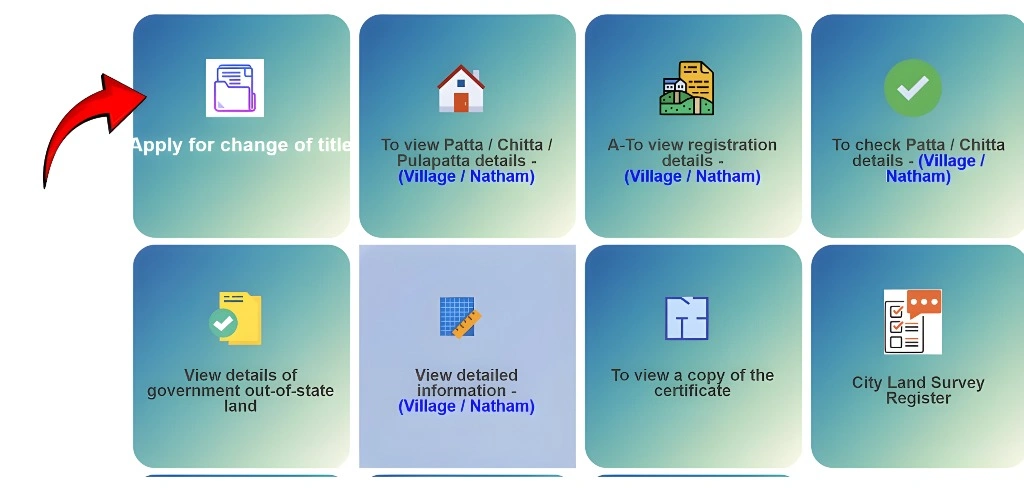
Here’s how you can get EC records for multiple years:
Go to the TNREGINET Portal
Open the official TNREGINET website to start the EC search.
Choose “Encumbrance Certificate”
Click on EC and then select Search/View EC.
Enter Property Details
Fill in:
Survey number (and subdivision if any)
Zone
District
Sub‑Registrar Office
Village
Select the Date Range
In the fields marked “From” and “To”, choose the earliest and latest years you need (for example 2000–2025). This tells the system to include all records in that period.
Search and Download
After searching, view the EC on screen and click Download to save the PDF with all results for that range.
This downloaded certificate will include all the property transactions recorded within those years, so you don’t have to download separate files for each individual year if they fall within the chosen period.
Tips for Getting Complete EC Records
Use a broader date range
If you’re not sure when the property first changed hands, choose a long range like 1980–2025 so nothing gets left out.
Check survey/subdivision numbers
Make sure the survey and subdivision numbers are correct. Errors here can block older records from showing.
Choose “Plot/Survey” search
When possible, use the plot survey option instead of document number only — this often pulls more complete history.
Common Mistakes to Avoid
Using a short date range
If you only search for a few years, older transactions won’t show up even if they exist in the system.
Entering wrong property details
The portal will not find EC records if the survey number or SRO is incorrect. Always double‑check.
Thinking “one click” will download all historical ECs automatically
TNREGINET doesn’t have a single archive button for all history. You control what years are in your download by the range you enter.
FAQs
Final Words
Yes, you can download multiple EC records from TNREGINET — and the best way to do it is by selecting a wide date range in the “From” and “To” fields when you search. This gives you a single PDF covering all those years, making property history checks easier and more complete. If you have very old transactions that don’t show up online, local office help may be needed.