EC Downloaded But Bank Rejects? How to Fix It Fast (2026)
Have you downloaded your Encumbrance Certificate (EC) from TNREGINET only to find that your bank says it’s not valid? This happens more often than you think. Let’s break down why it happens and how to fix it quickly so your property or loan processing doesn’t get delayed.
Why Banks Reject EC Downloads and What It Means
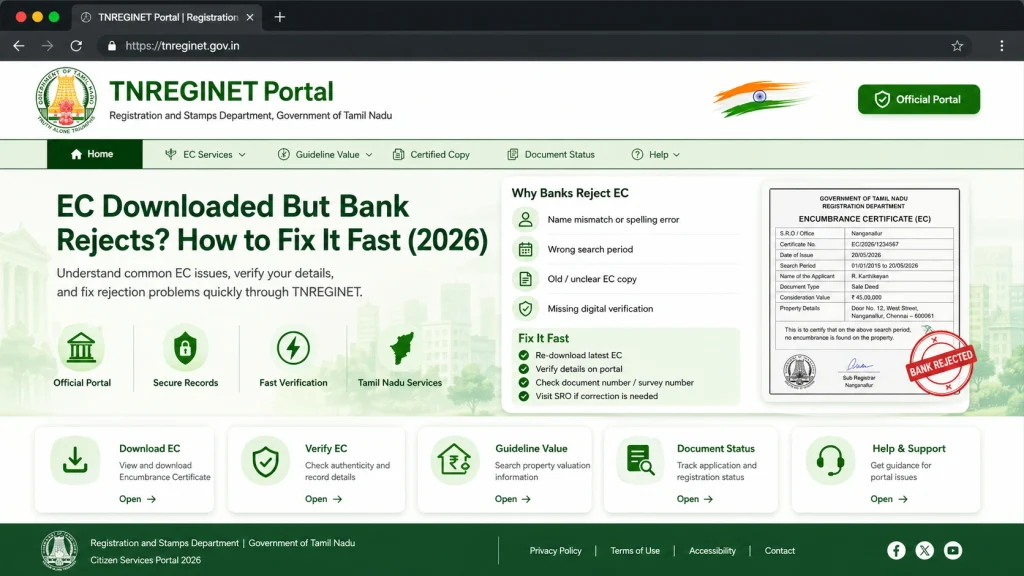
Banks are very strict about legal documents. There are a few common reasons your EC might be rejected:
Not Digitally Signed or Certified
Some banks require a digitally signed certified copy directly from TNREGINET. If you downloaded a regular PDF or printout without a digital signature, it will not be accepted for legal or financial purposes.
Incomplete or Missing Details
EC must show accurate property information. If details like property address, survey number, or owner name are missing or incorrect, banks may reject it.
Wrong Date Range Selected
Banks often need ECs covering the last 13–30 years depending on the property history. If your EC only covers a short period, it may not meet bank requirements.
Mismatch With Property Records
If the property has changed owners multiple times and your EC does not reflect all registered transactions, the bank may ask for an updated or certified copy.
You can also read: TNREGINET EC Not Showing? Fix It Fast Update (2026)
How to Fix a Rejected EC: Step-by-Step Guide
Here’s a step-by-step approach to make your EC accepted:
Step 1: Check Digital Signature
Ensure the EC you downloaded is digitally signed and certified. Look for the signature section at the bottom of the PDF. A digital signature makes it legally valid.
Step 2: Download a Full History of Transactions
When downloading, select a longer date range to cover all past property transactions. Banks often require a full history rather than a partial record.
Step 3: Verify Property Details Carefully
Double-check your survey number, plot number, and owner name. Even small typos can cause the bank to reject your EC.
Step 4: Contact SRO or TNREGINET Support if Needed
If the EC is still rejected, visit your Sub-Registrar Office (SRO) or contact TNREGINET support to request a verified certified copy.
Quick Tips to Avoid Bank Rejection
Common Mistakes That Lead to Bank Rejection
Even small mistakes can cause issues. Avoid these:
When to Visit Sub-Registrar Office (SRO)
Sometimes online access is not enough. Visit SRO if:
How to Download Your EC Safely and Legally
Once your EC appears, follow these steps:
Tip: Keep at least two copies, one for your records and one for official submissions.
Using TNREGINET on Mobile vs Desktop
TNREGINET works on mobile, but desktop is recommended:
Mobile Issues:
Captchas might fail, pages load slowly, buttons misalign.
Desktop Advantages:
Full screen view, easier to input details, faster downloads.
Tip: If you must use mobile, try Chrome or Firefox in desktop mode for better results.
How to Check EC Status and Updates
You can track the status of your EC request:
Log in to TNREGINET and navigate to the EC Status page.
Enter property details like survey number or document number.
Check for updates or approval notifications.
If status is not updated, follow up with your SRO for assistance.
FAQs
Final Words
Downloading an EC from TNREGINET is simple, but banks have strict requirements. Always ensure your EC is digitally signed, complete, and covers full property history. Double-check all details, select the right date range, and contact SRO if needed. These steps will prevent rejection, save time, and make your property verification process smooth and stress-free.