Guide to TNREGINET EC Search Using Street and Survey Number
Searching for your Encumbrance Certificate (EC) on the TNREGINET portal using the street address and survey number is one of the most accurate ways to find property history and records. This guide explains exactly how it works, common pitfalls, and step‑by‑step tips to get accurate search results every time.
What Is EC Search in TNREGINET?
An Encumbrance Certificate (EC) is a document that shows all legal transactions registered against a property for a specific period. It’s used for:
The TNREGINET portal allows you to search EC using different inputs. Two of the most reliable search methods are:
This article focuses on the street + survey number method, which gives more precise results when property data is correctly entered.
You can also read: Can EC Be Used for Loan Applications in Tamil Nadu? (2026)
Why Use Street and Survey Number for Search?
Using both street address and survey number together improves accuracy because:
This is especially useful in towns and cities where the same survey number may exist in multiple locations.
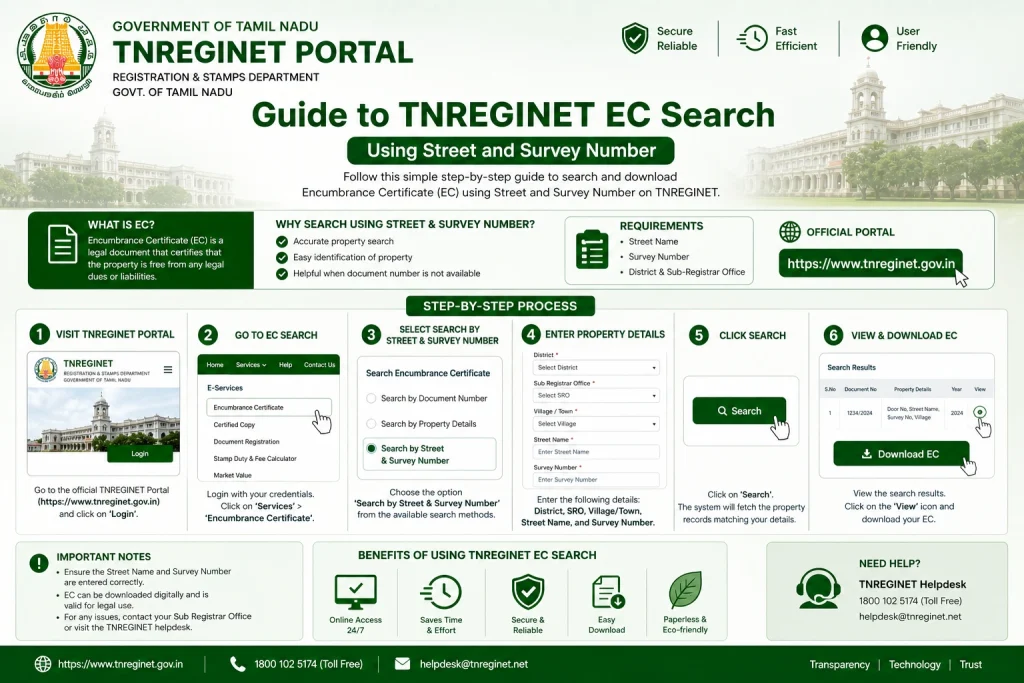
Step‑by‑Step: How to Search EC Using Street & Survey Number
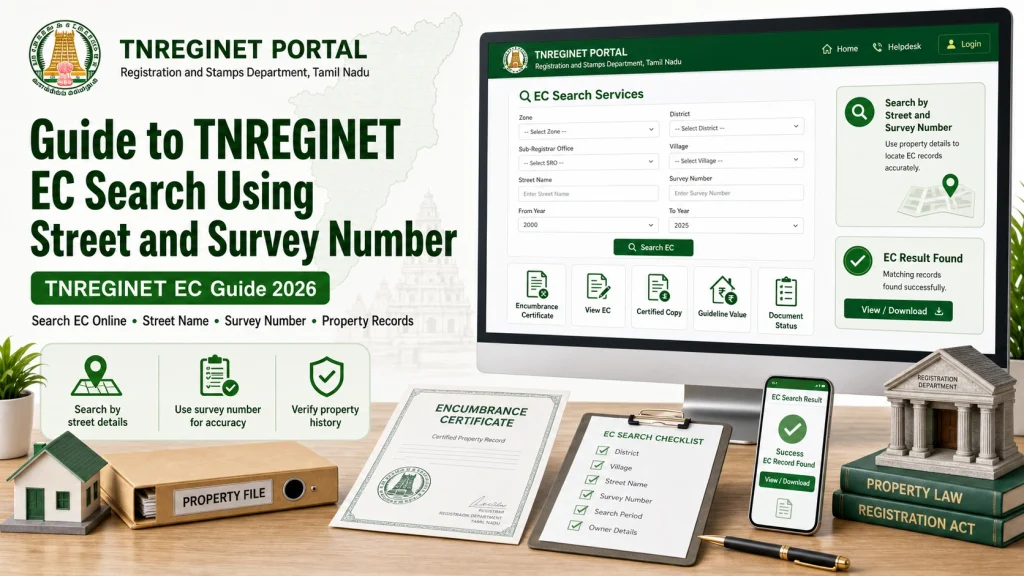
Step 1: Open the TNREGINET Portal
Step 2: Choose Encumbrance Certificate Search
Step 3: Select Search Type
Step 4: Enter Property Details
Fill in the following fields carefully:
Zone
Choose the correct zone where your property is located.
District
Make sure the district matches the address on your documents.
Sub‑Registrar Office (SRO)
Select the correct SRO where the property is registered.
Street Name
Enter exact street name as it appears in government records.
Survey Number
Enter the survey number without errors. If there are subdivisions (like 12/1, 12/2), include them.
Date Range
Select a date range that covers all expected transactions (e.g., 20–30 years).
Step 5: Submit and View Results
Important Tips for Accurate EC Search
Use Exact Street Names
Government records use official street names, which may differ from local names.
Check your deed or previous documents to find the exact wording.
Include Survey Subdivision
If your survey number has parts or subdivisions (like 12A, 12/1), include them accurately. Missing subdivisions can lead to incomplete results.
Use Correct SRO
Selecting the wrong Sub‑Registrar Office is one of the most common mistakes. Always confirm the correct SRO from your deed or sale document.
Expand Your Date Range
If you don’t see older transactions, increase the date range to cover more years.
Start with 20–30 years to capture complete history.
Try Both Methods
If street + survey search shows incomplete data, try survey number only search too — sometimes one method shows results the other doesn’t.
Common Reasons EC Search Fails
Even with correct inputs, sometimes the EC doesn’t show all entries. This may happen due to:
Incorrect or outdated street name
Missing survey subdivision
Property registered under different formats
Older transactions not fully digitized
Portal errors or temporary downtime
If your search fails, verify all input details and try again.
FAQs
Final Words
for an EC using street name and survey number on TNREGINET gives you one of the most accurate and complete results — especially in cities and towns.
To get reliable EC results:
Enter the correct street name
Include full survey number
Choose the right SRO
Use a wide date range
Try both search methods if needed
This method reduces errors and helps you get a complete EC quickly and confidently.