TNREGINET EC Not Found? Fix It Quickly Latest Update 2026
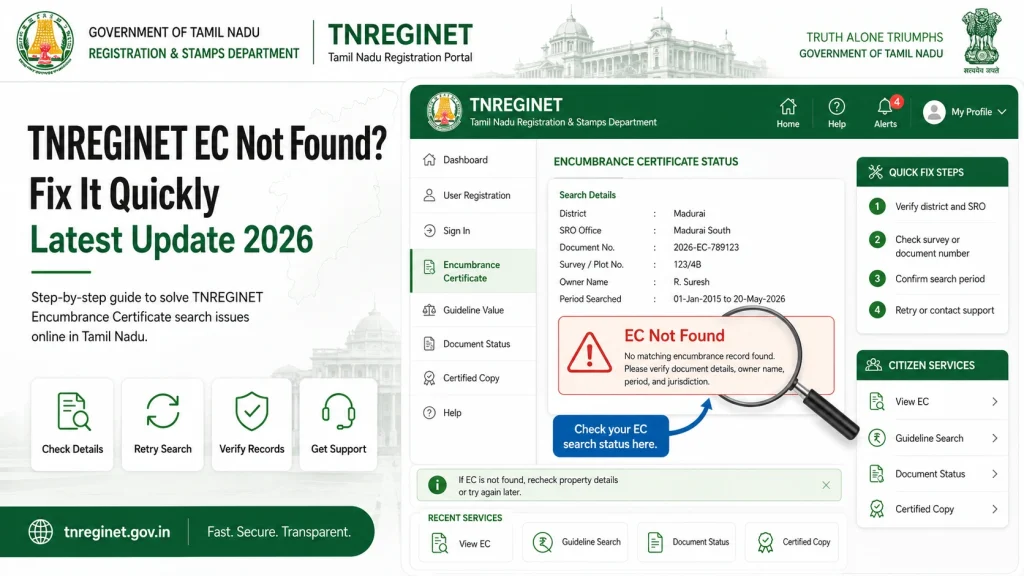
Sometimes, when you try to view your Encumbrance Certificate (EC) on TNREGINET, you might see a “No Records Found” message. This can be frustrating, especially if you need the EC urgently for property transactions. Here’s how to fix it quickly and get your EC without wasting time.
Step by Step Fix TNREGINET EC
Step 1: Double-Check Property Details
The most common reason for EC not appearing is incorrect or incomplete property information. Before troubleshooting:
- Verify the survey number carefully
- Make sure the village or locality is correct
- Check the district and Sub-Registrar Office (SRO) selection
- Confirm the date range for which you are requesting the EC
Having accurate details is the fastest way to fix missing records.
Step 2: Try a Different Date Range
Sometimes the EC database only contains records for specific periods.
If your first search fails, expand the start and end dates to include more years.
Narrow the search gradually to find the correct EC.
Step 3: Check for Sub-division or Partition Issues
If the property has been partitioned, inherited, or subdivided, older transactions may not appear under the current owner.
Include all known survey numbers linked to the property
Try searching using previous owner names if available
Step 4: Clear Browser Cache or Use Mobile App
Sometimes “EC Not Found” errors are technical glitches:
Use the official TNREGINET mobile app as an alternative
Clear your browser cache and cookies
Try a different browser or device
Step 5: Contact the Sub-Registrar Office (SRO)
If none of the above works:
They can verify property records and guide you on how to get the EC
Visit or call your local SRO
Provide survey numbers and other details
Common Mistakes to Avoid
You can also read: Download Joint Property EC from TNREGINET Latest Update 2026
How to Check Pending or Recent Registrations
Sometimes, “EC Not Found” happens because the property was recently registered and the records are still being updated.
How to Verify EC Accuracy After Download
Even after viewing and downloading your EC, it’s important to verify the details:
Compare the downloaded EC with your sale deed or registration documents
Check for correct owner name, survey number, and transaction dates
Report discrepancies immediately to the SRO for correction
Quick Comparison: Common Causes and Fixes
| Cause | Fix |
|---|---|
| Wrong survey number | Double-check number and re-enter |
| Wrong village/SRO | Correct village and select proper SRO |
| New property records not updated | Wait a few hours or check next day |
| Subdivided/inherited property | Search previous owner or multiple survey numbers |
| Browser/App glitch | Clear cache, try different browser or official mobile app |
FAQs
Final Words
If TNREGINET shows “EC Not Found,” don’t panic. Most of the time, it is due to minor input errors or delays in record updates. By double-checking property details, adjusting date ranges, and using the official portal or mobile app, you can usually access your Encumbrance Certificate quickly.
For persistent issues, contact the SRO directly — they are the ultimate authority for property records. Following these steps ensures you get your EC efficiently and safely.