TNREGINET EC PDF Blank Page? Here’s the Solution Update 2026
Many people using TNREGINET to download their Encumbrance Certificate (EC) face a common issue — the PDF opens as a blank page. This can be frustrating, especially if you need it for property registration, banks, or legal purposes. Here’s a simple guide to understand why it happens and how to fix it.
Why TNREGINET EC PDF Shows Blank Page
The blank page issue usually happens because of one or more of these reasons:
Browser Compatibility:
Some browsers do not fully support TNREGINET’s PDF viewer.
Pop-up Blockers:
The portal generates EC PDFs as pop-ups, which may be blocked.
Outdated PDF Viewer:
Your browser’s PDF plugin or default viewer may not work correctly.
Incorrect Details:
Entering wrong SRO, survey number, or date range can lead to blank results.
Session Timeout:
If you stayed too long on the portal before generating EC, the session may expire.
You can also read: Correct Errors in EC Online Through TNREGINET Update 2026
Step-by-Step Solution of TNREGINET EC PDF
Follow these steps to fix the blank EC PDF issue:
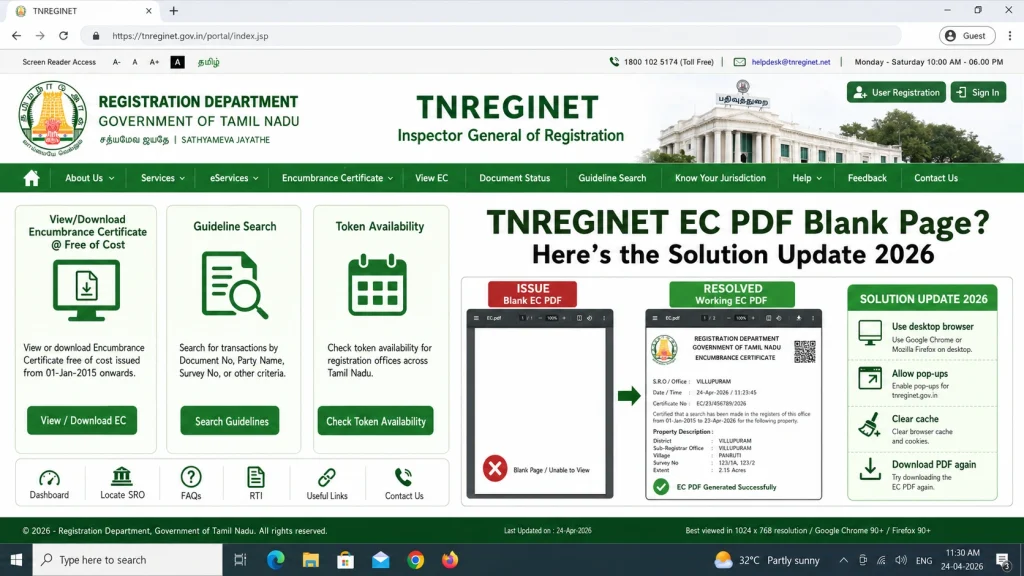
Use a Compatible Browser
Use Google Chrome, Mozilla Firefox, or Microsoft Edge. Avoid older versions of Internet Explorer.
Enable Pop-ups
Make sure pop-ups are allowed for the TNREGINET portal. Without this, the EC PDF will not open.
Update PDF Viewer
Ensure your browser’s PDF viewer or Adobe Acrobat Reader is updated to the latest version.
Clear Cache and Cookies
Sometimes old data causes issues. Clear your browser cache and cookies, then log in again.
Check Your Details
Verify SRO, survey number, property type, and date range. Even one wrong entry can result in blank PDFs.
Download Instead of Open
Right-click on the PDF link and select Save As / Download instead of opening it in the browser.
Try a Different Device
If it still does not work, try generating the EC from another computer or mobile device.
Common Causes and Quick Fix Table
| Cause | Why It Happens | Quick Fix |
|---|---|---|
| Browser Compatibility | Older or unsupported browsers cannot render PDF | Use Chrome, Firefox, or Edge |
| Pop-up Blocker | PDF opens as a pop-up but is blocked | Enable pop-ups for TNREGINET portal |
| Outdated PDF Viewer | Browser plugin cannot display PDF correctly | Update Adobe Acrobat or browser PDF viewer |
| Incorrect Property Info | Wrong SRO, survey number, or date range | Recheck all details before generating PDF |
| Session Timeout | Portal session expired before download | Refresh page and start the search again |
Troubleshooting TNREGINET EC PDF
If the blank page persists, try these troubleshooting tips:
Additional Tips
FAQs
Final Words
The TNREGINET blank EC PDF issue is common but easy to fix. By checking your browser, enabling pop-ups, updating your PDF viewer, and verifying details, you can generate a valid EC quickly. Always save your PDF and double-check before submission to avoid delays or legal issues.