Mobile Guide: TNREGINET EC Download 2026 (Latest Update)
Downloading your Encumbrance Certificate (EC) on mobile from TNREGINET can be easy if you follow the right steps. This guide will walk you through the latest mobile‑friendly process, common issues, and how to solve them.
What Is EC and Why You Need It
An Encumbrance Certificate (EC) shows all registered transactions on a property, such as sales, mortgages, and transfers. It proves that the property is free from legal or financial claims.
People usually need it for:
You can also read: TNREGINET EC PDF Blank Page? Here’s the Solution Update 2026
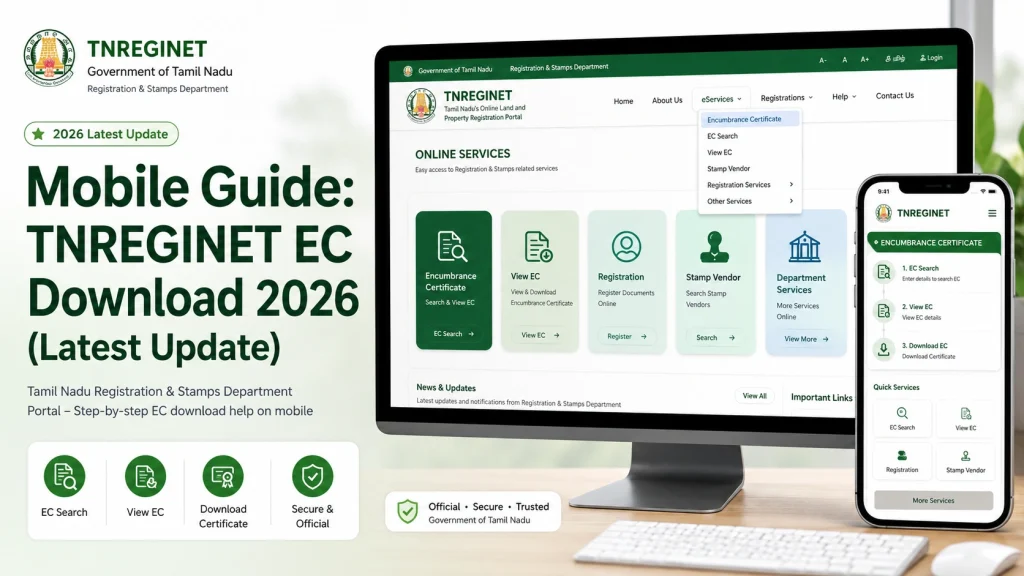
Step‑by‑Step Mobile Guide to Download EC (2026)
Here’s the most reliable way to download your EC using a phone:
Open Browser on Your Mobile
- Use Google Chrome or Firefox — they work best with TNREGINET.
Go to TNREGINET Portal
- Type the official TNREGINET portal address in the browser.
Find the EC Search Section
- Look for “Encumbrance Certificate” or “EC View Download” in the menu.
Enter Property Details
Tap Search
- The portal will show matching EC records.
View EC Details
- Check that the details match your property.
Download PDF
- Tap the download button. If it opens in the browser, use the Download / Save option instead of viewing in place.
- आप जानकारी डाउनलोड भी कर सकते हैं, अगर आक इसकी जरूरत हो।
Mobile Browser Tips for Better Results
Here are quick tips to avoid common mobile issues:
Enable Pop‑ups in your mobile browser; some EC downloads appear as pop‑ups.
Allow Downloads so the PDF saves directly to your phone storage.
Turn on Desktop View if the portal elements don’t display correctly.
Use Stable Internet to avoid timeouts during EC generation.
Troubleshooting Mobile Download Issues
| Issue on Mobile | Why It Happens | How to Fix It |
|---|---|---|
| Can’t see download link | Pop‑ups blocked or mobile browser limits pop‑ups | Enable pop‑ups, try desktop mode |
| PDF opens blank | Browser PDF viewer not compatible | Enable download instead of view, use Chrome/Firefox |
| Session expires | Mobile idle time or slow internet | Restart search quickly after filling details |
| Some fields missing | Website not responding or not fully loaded | Enable desktop mode, reload the page |
| Cannot save EC | Download permissions not allowed | Allow storage permissions in browser settings |
Common Causes of EC Download Failure on Mobile
Extra Tips to Make It Faster
FAQs
Final Words
Downloading an EC from TNREGINET on mobile doesn’t have to be confusing. With the right browser, pop‑ups enabled, and accurate details, you can get your EC quickly.
Try these steps and tips on your phone before visiting any office. It will save time and help you get documents you need for bank, legal, or property work.