TNREGINET Certificate Re-download Guide Update 2026
Sometimes, TNREGINET certificates like Encumbrance Certificates (EC), certified copies, and registered property documents need to be re-downloaded. You may have lost the original file, your PDF may not open, or you might need a fresh copy for legal, banking, or property verification purposes.
The TNREGINET portal allows you to re-download certificates instantly if your application status is approved or completed. This guide explains the re-download process in 2026, step-by-step instructions, common issues, and best practices to ensure the certificate is accessible and printable.
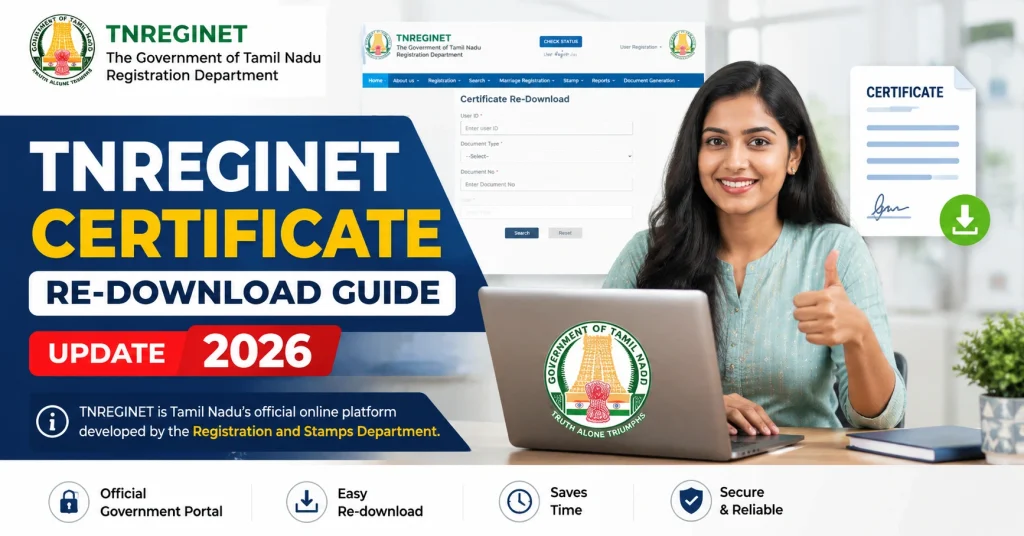
Quick Re-download Guide
To re-download TNREGINET certificates:
Ensure your certificate shows Approved or Completed status before re-downloading.
You can also read: TNREGINET Certificate Not Opening? Solve It (Latest Update)
Why Re-download TNREGINET Certificates?
You may need to re-download certificates for several reasons:
Step-by-Step Guide to Re-download TNREGINET Certificates
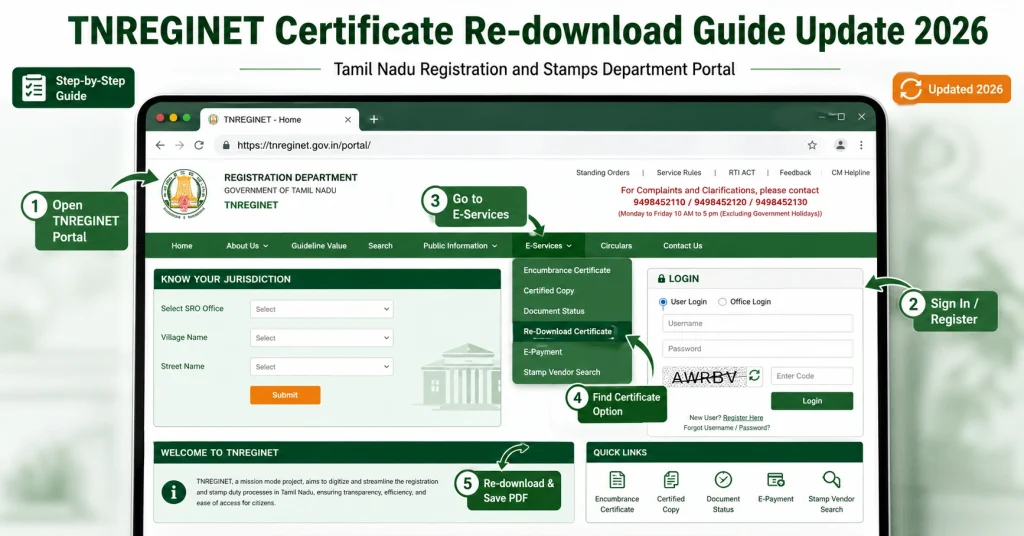
Step 1: Open TNREGINET Portal
Visit the official TNREGINET website.
Step 2: Log In
Use your registered credentials to sign in.
Step 3: Navigate to E-Services
Select the E-Services section from the homepage.
Step 4: Choose Certificate Type
Pick the certificate you want to re-download:
Step 5: Enter Required Details
Provide the certificate details:
| Field | Example |
|---|---|
| District | Chennai |
| SRO | Chennai South |
| Survey Number | 23/10 |
| Document Number | 1234 |
| Registration Year | 2022 |
| Date Range | 01-01-2000 to current date |
Step 6: Check Certificate Status
Ensure your certificate is Approved or Completed. Pending or Processing certificates cannot be re-downloaded.
Step 7: Click Download
Click Download to save a fresh copy. You can also use the Print / Save as PDF option to get a print-ready file.
Step 8: Verify the PDF
After download:
Common Errors During Re-download
| Issue | Possible Solution |
|---|---|
| Certificate not opening | Update PDF reader and re-download |
| Nil EC / incorrect details | Verify SRO, survey number, and date range |
| Download failed | Use a stable internet connection |
| Payment pending | Ensure all fees are paid |
| Browser issues | Use Chrome, Firefox, or Edge and clear cache |
| PDF file corrupted | Delete and download again |
Tips for Smooth Re-download
How to Re-download Different Certificates
Encumbrance Certificate (EC)
Go to E-Services → EC.
Enter property and SRO details.
Select date range covering all registered transactions.
Click Download PDF.
Certified Copy (Nakal)
Navigate to Document Search / Certified Copy.
Enter registration year, document number, and SRO.
Pay any applicable fee if required.
Download approved certified copy.
Sale Deed or Registration Document
Select Document Search.
Provide SRO, district, survey number, and registration year.
Click Download for the approved PDF.
How to Make Downloaded Certificates Printable
Why Certificates Might Not Re-download
Correcting these issues ensures successful re-download.
FAQs
Final Words
Re-downloading TNREGINET certificates in 2026 is straightforward. By using the official portal, verifying SRO, document number, survey number, and status, you can download ECs, certified copies, and registration documents instantly.
Always ensure the certificate is Approved or Completed, verify the PDF after download, and save a backup copy for future use. This guide ensures a smooth, hassle-free re-download process for all TNREGINET users.