TNREGINET Certificate Not Opening? Solve It (Latest Update)
Downloaded your TNREGINET certificate but it won’t open? You’re not alone. Many users face issues when trying to open Encumbrance Certificates (EC), Certified Copies, Registration Documents, and other downloaded files from the TNREGINET portal.
Sometimes the file downloads successfully but shows a blank page, PDF error, unsupported format message, or simply refuses to open. In most cases, the issue is not with the certificate itself. Instead, it may be related to browser settings, incomplete downloads, device compatibility, PDF software, or portal-related problems.
This guide explains why TNREGINET certificates fail to open and provides simple solutions you can try immediately.
Quick Solve
If your TNREGINET certificate is not opening, check whether the PDF was downloaded completely, use a different browser, update your PDF reader, disable pop-up blockers, and verify that your application status shows Approved or Completed.
Most certificate opening problems can be solved within a few minutes.
You can also read: Verify TNREGINET Certificate Online Instantly (Update 2026)
Why Is My TNREGINET Certificate Not Opening?
There are several reasons why a downloaded certificate may not open properly.
Common causes include:
Understanding the actual cause helps you fix the issue faster.
Common TNREGINET Certificate Errors
| Error Message | Possible Cause |
|---|---|
| PDF Cannot Open | Corrupted download |
| Blank White Screen | Browser issue |
| Invalid File Format | Incomplete download |
| Download Failed | Internet interruption |
| Access Denied | Session expired |
| File Not Found | Certificate not generated yet |
| Unsupported File | Old PDF reader |
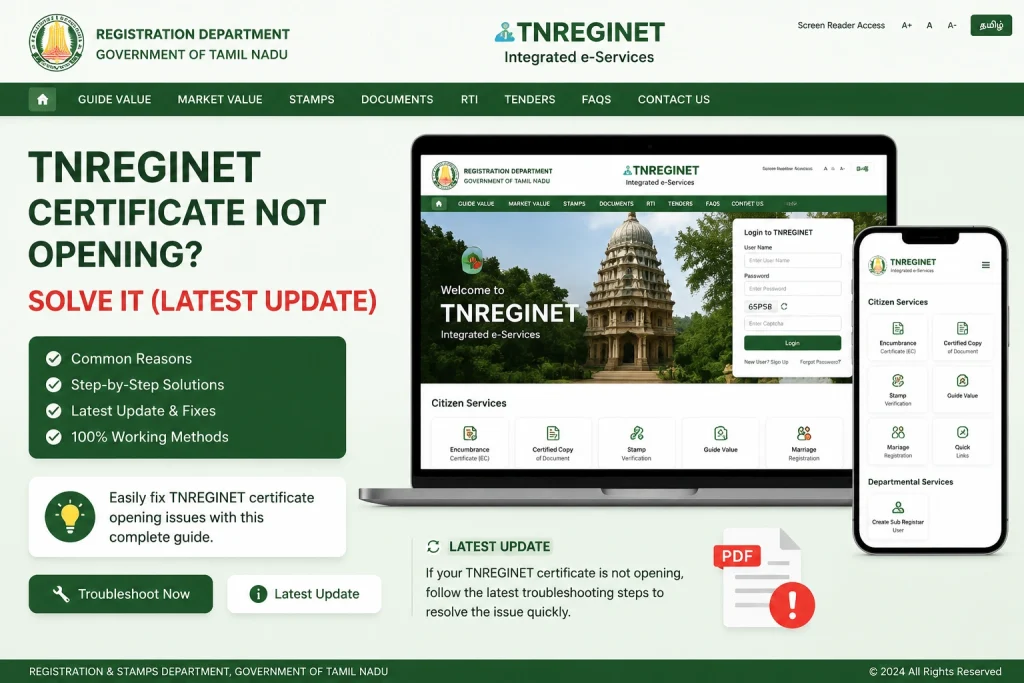
How to Fix TNREGINET Certificate Not Opening
Fix 1: Download the Certificate Again
Sometimes the file may not download properly.
Steps:
This solves many certificate opening issues.
Fix 2: Check Certificate Status
Certificates can only be downloaded after approval.
Verify your application status.
| Status | Download Available |
|---|---|
| Pending | No |
| Processing | No |
| Approved | Yes |
| Completed | Yes |
| Returned | No |
| Rejected | No |
If your status is still Pending or Processing, wait until approval is complete.
Fix 3: Use a Different Browser
Some browsers may not display downloaded certificates properly.
Recommended browsers:
Avoid using outdated browsers that may not support PDF rendering.
Fix 4: Update Your PDF Reader
Many users try opening certificates using old PDF software.
Install or update:
After updating, reopen the file.
Fix 5: Disable Pop-Up Blockers
TNREGINET often opens certificates in a new window.
If pop-ups are blocked:
Allow pop-ups for the TNREGINET website and try again.
Fix 6: Clear Browser Cache
Old browser data can interfere with downloads.
Steps:
This often resolves display issues.
Fix 7: Open the File on Another Device
Sometimes the problem is device-specific.
Try:
If the certificate opens elsewhere, the issue is likely with your original device.
Fix 8: Check File Size
A certificate file with extremely small size often indicates an incomplete download.
Example:
| File Size | Status |
|---|---|
| 0 KB | Failed download |
| 5 KB | Likely incomplete |
| 100 KB+ | Usually valid PDF |
Delete incomplete files and download again.
Fix 9: Verify Internet Connection
A slow or unstable internet connection can interrupt downloads.
Before downloading:
Interrupted downloads often create damaged PDF files.
Fix 10: Rename the File
Occasionally, file names contain special characters that cause problems.
Try:
This simple trick works surprisingly often.
Mobile Users: Why Certificates Won’t Open
Many users access TNREGINET using smartphones.
Common mobile issues:
Solutions:
TNREGINET Certificate Download Troubleshooting Table
| Problem | Solution |
|---|---|
| Blank PDF | Download again |
| File won’t open | Update PDF reader |
| Download missing | Check approval status |
| Certificate not found | Log in again |
| White screen | Clear browser cache |
| PDF error | Use another browser |
| Mobile issue | Install PDF app |
| Download interrupted | Use stable internet |
How to Verify a Downloaded Certificate
After opening the certificate:
Check:
If information appears incomplete, download the file again.
Tips to Prevent Certificate Download Problems
Follow these best practices:
These simple habits prevent most future issues.
When Should You Contact Support?
Contact support if:
In these situations, assistance from the Registration Department may be required.
FAQs
Final Words
TNREGINET certificate opening problems are usually caused by incomplete downloads, browser settings, outdated PDF software, or approval-related issues. In most cases, downloading the file again, updating your PDF reader, clearing browser cache, or switching browsers solves the problem quickly.
Before assuming there is an issue with the certificate itself, verify your application status, check file size, and ensure the download completed successfully. Following the troubleshooting steps in this guide will help you access your TNREGINET certificates without unnecessary delays.