TNREGINET QR Code Verification Guide Latest Update (2026)
If your TNREGINET document has a QR code, that usually means it is part of Tamil Nadu’s move toward digitally signed, QR-coded records. A Tamil Nadu e-Governance Agency document on Project STAR says the Registration Department delivers digitally signed QR coded Encumbrance Certificates and Certified Copies, and the official TNREGINET homepage shows services like View EC, Document Status, and an external Electronic/Digital Signature facility link.
The key thing to understand is simple: the QR code is a trust signal, not the whole verification process. You should not stop at scanning it. You should also match the document with the right TNREGINET record, service flow, or download source. Current TNREGINET how-to pages consistently say issued online ECs come with a QR code and digital signature, and that approved copies are available through the portal after processing.
What does the QR code on a TNREGINET document mean?
For TNREGINET users, the QR code usually appears on issued digital records, especially Encumbrance Certificates and Certified Copies. The TNeGA STAR document says the department provides digitally signed QR coded Encumbrance Certificates and Certified Copies, and reporting from The Times of India described the rollout as QR-enabled copies containing the digital signatures of sub-registrars.
In plain words, the QR code is there to help confirm that the file is part of the official digital process. But the safest check is still to confirm that the certificate details, issuing flow, and portal record all line up. That is where many thin competitor pages stop too early.
You can also read: TNREGINET OTP Not Received? Try These Easy Fixes Update 2026
How to verify a TNREGINET QR-coded document
Start from the official TNREGINET portal
Open the official TNREGINET homepage first. The portal publicly lists View EC, Document Status, and separate search sections for things like marriage, birth and death, firms, societies, and chit funds. Starting from the homepage is safer than trusting a PDF that was forwarded on WhatsApp or email.
Identify what type of document you have
This step matters. If your file is an Encumbrance Certificate, the right path is different from a certified copy or a marriage-related record. The TNREGINET homepage clearly separates these services instead of showing one universal certificate-verification button.
If it is an EC, verify it through the EC flow
For an Encumbrance Certificate, use View EC or the EC application/download route. The TNREGINET homepage shows Encumbrance Certificate > View EC, and current guides say approved online ECs can be viewed from E-services > Encumbrance Certificate > Request List after payment and approval. Those same guides say the issued EC includes a QR code and digital signature.
Scan the QR code and compare the result
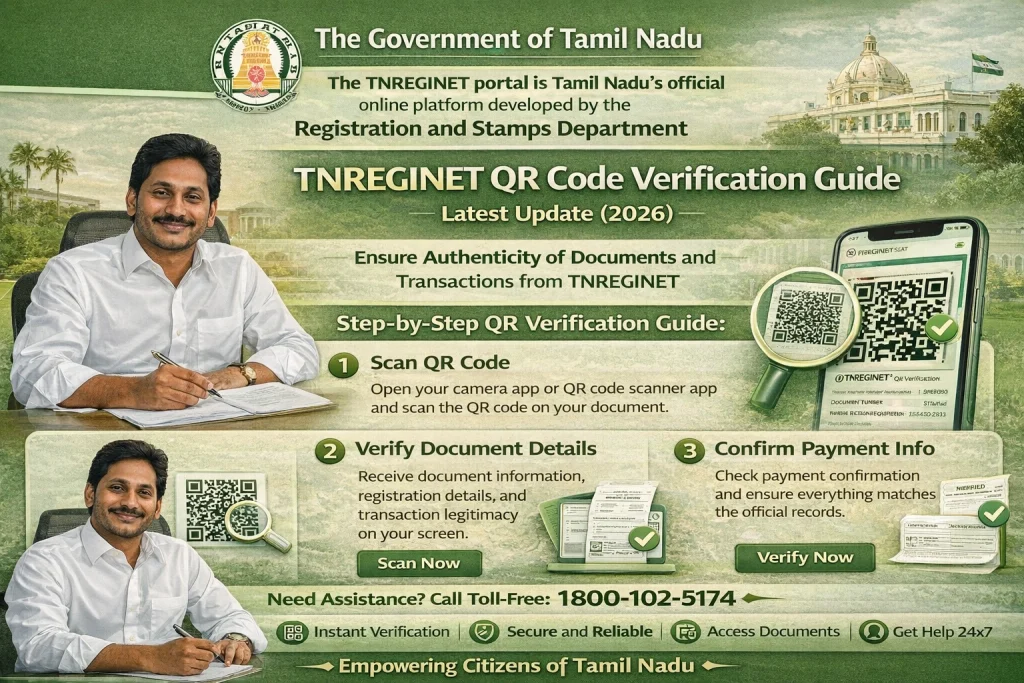
Now scan the QR code on the certificate with your phone’s camera or QR scanner. Then compare whatever opens or appears with the document in front of you. At a minimum, match the property or record details, the relevant office details, and the fact that the certificate came through the official TNREGINET flow. This comparison step is important because the TNeGA document and public guides frame the QR code as part of the official digital-delivery process, not as a stand-alone shortcut that replaces record checking.
Check the digital-signature side too
Do not verify only the QR code. Current TNREGINET guides repeatedly say issued ECs are provided with a digital signature along with the QR code. The official homepage also links out to an Electronic/Digital Signature facility, which reinforces that digital-signature validation is part of the trust chain.
Use Document Status or the relevant record search when needed
If the QR code alone does not answer your question, go back to TNREGINET and use the matching service. The homepage shows Document Status and category-based search tools. That is especially useful when you need to confirm whether a document exists in the system, whether it matches the correct record type, or whether you are looking at the right certificate altogether.
The safest way to verify a TNREGINET EC with QR code
For an EC, the best method is this:
Open TNREGINET, use View EC or the proper EC service, find the record, and then compare it with the QR-coded certificate you received. Current guides say the portal can show property-related details such as zone, district, Sub-Registrar Office, survey or document details, and that the final approved EC appears in the Request List with QR code and digital signature. That gives you two layers of checking: the portal record and the certificate file.
What if the QR code does not work?
If the QR code does not scan, do not assume the certificate is fake right away. First check whether:
If the document is supposed to be an online EC, current guides say the approved copy should be available in the portal’s Request List after processing. So the best fallback is to log in and verify the issued copy directly there.
If you still cannot verify it, use the official help channels listed on TNREGINET. The homepage shows complaint numbers 9498452110 / 9498452120 / 9498452130, software helpline 1800 102 5174, helpdesk phone 044-24640160, and helpdesk@tnreginet.net.
How to avoid fake or misleading TNREGINET PDFs
The safest rule is simple: do not trust a PDF just because it has a QR code image on it. Trust it only when the file matches the official portal flow. The better signs are:
Best quick method
If you want the easy version, do this:
FAQs
Final Words
The best thing about this topic is also what makes it confusing. TNREGINET clearly supports QR-coded digital records, but the public portal does not visibly present one simple “QR verify here” page on the homepage. So the most accurate guide is not “just scan and trust.
” The better advice is: scan the QR code, then verify the document through the correct TNREGINET service flow as well. That makes this article more useful than pages that mention QR codes without explaining how to actually check the certificate properly.