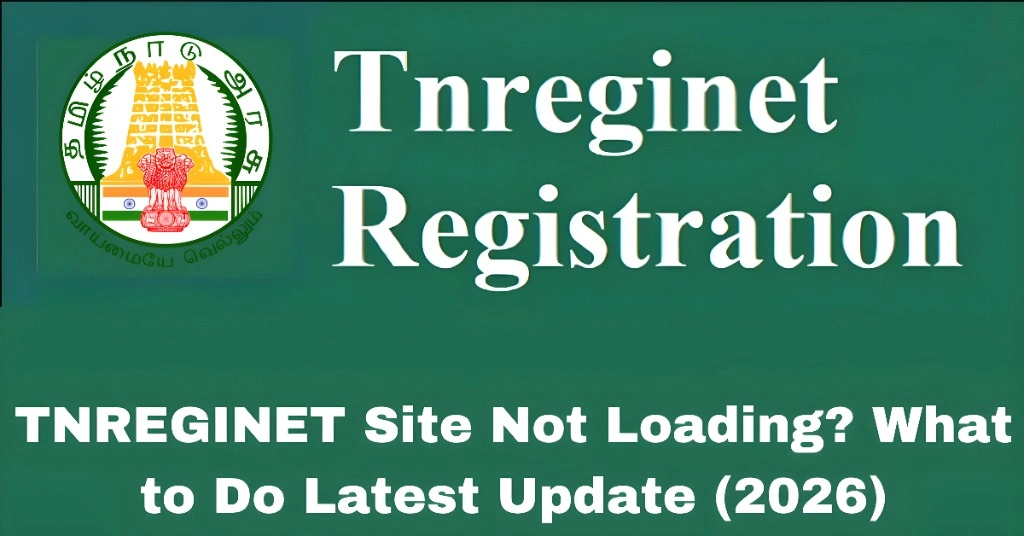
TNREGINET Site Not Loading? What to Do Latest Update (2026)
If TNREGINET is not loading, the reason is usually one of these: your browser settings, old cache files, a weak internet connection, or a temporary TNREGINET outage. The official TNREGINET homepage clearly says JavaScript must be enabled, and it also still carries a “Best Viewed in Internet Explorer 10.0 and above” note, which suggests browser compatibility can still matter on this portal.
The good news is that most loading issues are easy to test.
First, check if the problem is with TNREGINET itself
This is the first thing many people miss.
Sometimes the portal is genuinely down. That has happened before. On January 22, 2026, TNREGINET was officially reported as temporarily unavailable because of scheduled maintenance and STAR 3.0 upgrades. There was also a broader portal glitch on September 29, 2025 that disrupted registration work across Tamil Nadu before services were restored later that day.
What to do:
If the site was working earlier and suddenly stops for everyone, wait a little and try again later. If your work is urgent, note that during the January 2026 maintenance window, Sub-Registrar Offices were reported to continue functioning normally.
You can also read: TNREGINET Captcha Not Working? Solve It Fast Update (2026)
Make sure JavaScript is enabled
This is one of the biggest fixes.
The official TNREGINET homepage explicitly warns users that JavaScript must be enabled to continue. If JavaScript is turned off, the page may open only partly, buttons may not work, captcha may not load, or the portal may look broken.
What to do:
Quick tip:
If the page opens but menus, login, or search tools do not respond, JavaScript is one of the first things to check.
Refresh the page and clear cache
Current TNREGINET troubleshooting pages keep repeating the same fix for a reason: old browser files can stop the site from loading correctly. Several current help-style pages recommend a full page refresh, clearing cache and cookies, and trying again with a clean browser session.
What to do:
Quick tip:
Do not keep reloading the same broken page for 10 minutes. A clean reload often works better than repeated refreshes.
Try another browser or device
This is especially useful with older government portals.
The official TNREGINET site still displays an old compatibility note saying it is best viewed in Internet Explorer 10.0 and above. That does not mean you should use Internet Explorer today, but it does suggest the site may behave differently across browsers. Current troubleshooting pages also suggest trying a different browser or device when TNREGINET pages do not load properly.
What to do:
Check your internet connection
A weak connection can make TNREGINET look fully broken even when the real issue is the network.
Current TNREGINET troubleshooting pages specifically recommend checking internet stability when pages, captchas, or login tools fail to load.
What to do:
Quick tip:
If other websites are also slow, the issue is probably not TNREGINET.
Start from the official homepage
Sometimes users open an old bookmarked link, a half-loaded session page, or a stale search page and think the whole site is down. The safest starting point is the official TNREGINET homepage, which links to login, user registration, EC view, guideline search, document status, and other services from one place.
What to do:
Open the official homepage first.
Then navigate to the service you need from the main menu instead of relying on an old saved tab.
If the page opens but looks broken, think browser-side issue
This is where many users get confused.
If TNREGINET opens but parts of the page are blank, buttons do nothing, or captcha/login sections do not behave properly, the likely cause is not a full portal outage. It is usually a browser-side issue such as JavaScript being off, stale cache, or compatibility trouble. That matches both the official TNREGINET JavaScript warning and the common competitor troubleshooting advice around cache, browser switching, and stable connections.
Contact official TNREGINET support if it still does not load
If you already checked JavaScript, refreshed the page, cleared cache, changed browser, and tried another network, the next step is official support.
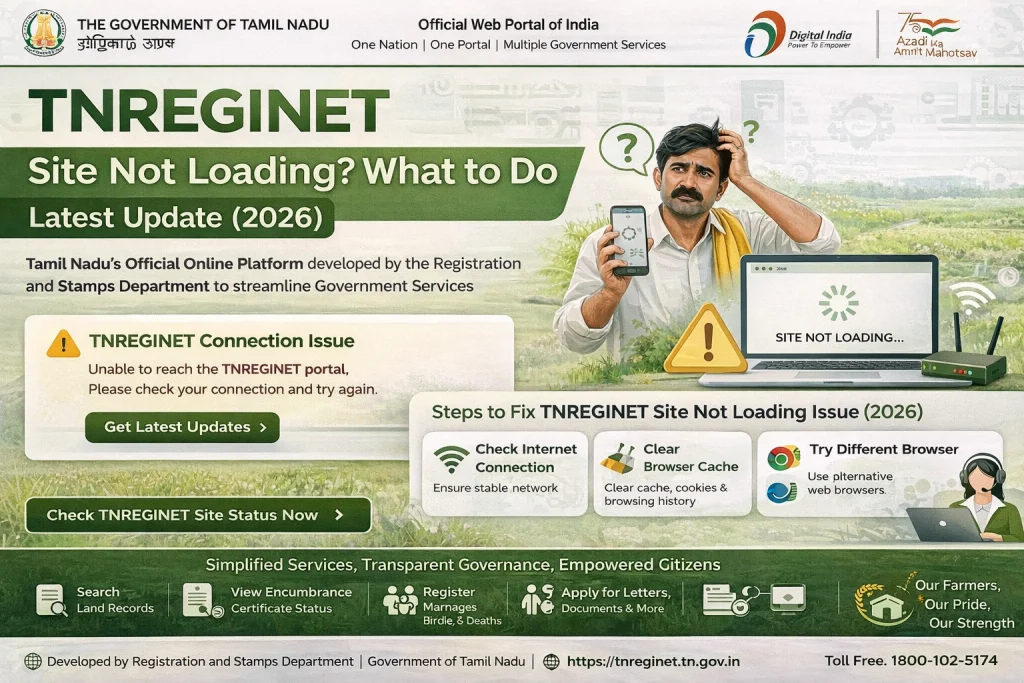
The TNREGINET portal lists these contact details on the homepage:
Keep this ready before calling:
your username if you have one, the service you were trying to open, the time the issue happened, and a screenshot if possible.
Best quick fix order
If you want the fastest path, do this in order:
FAQs
Final Words
Most articles on this topic stay too generic. They tell users to “try again later” and stop there. A better answer is this: first figure out whether the issue is a real TNREGINET outage or just a browser problem. That matters because both have happened. The official site itself points to one major cause by warning users to enable JavaScript, while recent reporting shows that portal-wide maintenance and glitches can also happen.
So if TNREGINET is not loading, start simple: check JavaScript, clear cache, change browser, and retry from the homepage. If that still fails, contact the official helpdesk