How to Check Digital Signature on TNREGINET PDF Update (2026)
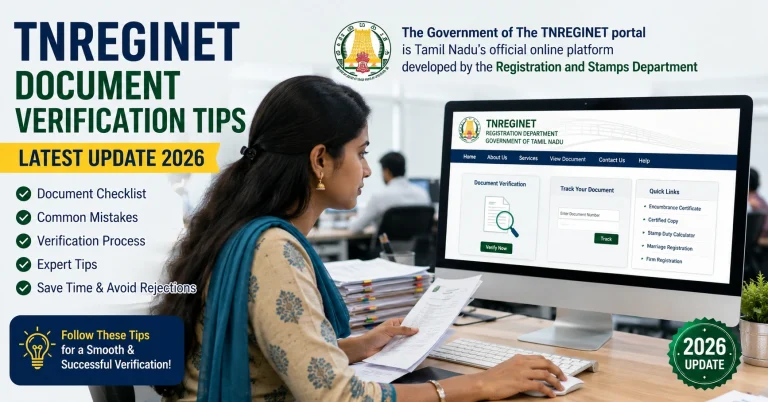
If you downloaded an EC or certified copy from TNREGINET and want to know whether it is really signed, the safest way is to download the PDF, open it in Adobe Acrobat Reader, and validate the signature from the Signatures panel. That matters because Adobe says PDF signature validation is how you verify both the authenticity of the signer and the integrity of the signed content, while Tamil Nadu’s TNeGA materials confirm TNREGINET issues digitally signed QR-coded records.
Download the PDF from the official TNREGINET process
Start with the file that came from the official TNREGINET workflow, not a forwarded PDF from someone else. The TNREGINET homepage shows services such as Encumbrance Certificate / View EC, Document Status, and Certified Copy, and TNeGA’s project document says the portal delivers digitally signed QR-coded ECs and certified copies.
Tip:
If you got the file by WhatsApp or email, first try to match it with the version in your TNREGINET account or service flow.
You can also read: TNREGINET JavaScript Error: Quick Solution Update (2026)
Open the PDF in Adobe Acrobat Reader
For a proper signature check, use Adobe Acrobat Reader. Adobe’s own documentation gives the validation flow for signed PDFs inside Acrobat, including the Signatures panel, Validate Signatures, Signature Properties, and Show Signer’s certificate.
Easy fix:
Save the file to your computer or phone first, then open it in Acrobat Reader instead of just glancing at the PDF preview.
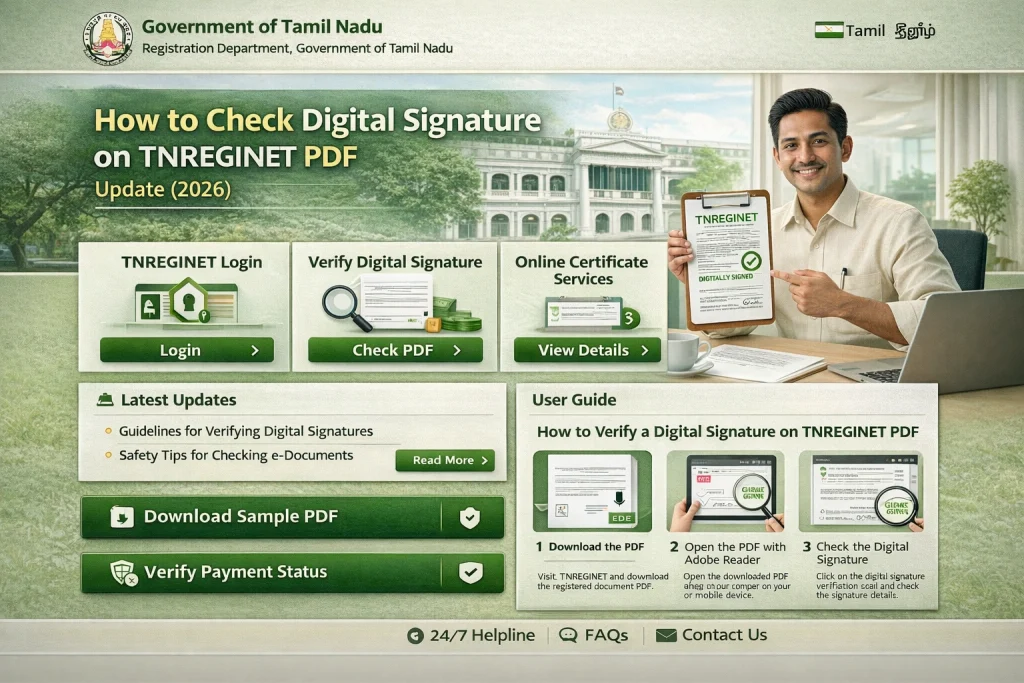
Open the Signatures panel and validate the signature
Adobe says to open the signed PDF, select Signatures from the right panel, choose Options, and then select Validate Signatures. Adobe also says you can use All tools > Use a certificate > Validate all signatures if you want to validate everything in the file.
What you want to see:
You want Acrobat to show that the signature validates, not just that a signature image or badge is visible.
Check the signer certificate details
After validation, Adobe says to open Signature Properties and then choose Show Signer’s certificate. This is the step that lets you inspect who signed the file and review the certificate details behind the signature.
What to check:
Look at the signer details and make sure the PDF appears to be tied to the official TNREGINET-issued document, not a random edited copy.
Check the timestamp too
Adobe also says the Signatures pane can show timestamp information. Its guide explains that a signature may be time-stamped, based on the signer’s local clock, or show a timestamp-verification issue if the trust relationship is missing.
Why this matters:
A timestamp helps show when the PDF was signed, which is useful when you are checking a recently issued EC or certified copy.
Match the PDF with the TNREGINET record
Do not stop at the signature panel alone. Also match the PDF details with the TNREGINET service record. The TNREGINET homepage publicly exposes tools like View EC and Document Status, which are useful for checking whether the record details in the PDF line up with the portal result.
Check these details:
If the PDF has a QR code, check that too
Tamil Nadu’s TNeGA document says the department delivers digitally signed QR-coded Encumbrance Certificates and Certified Copies. So if your TNREGINET PDF includes a QR code, scan it too. But do not treat the QR code as the only check. The safer method is to verify both the QR side and the digital-signature side inside the PDF.
What if the signature does not validate?
If Acrobat does not show the signature as valid, do not rely on the file yet. Since Adobe says validation is meant to confirm authenticity and document integrity, a failed or unclear validation result means you should re-check the file before using it. Start by downloading the PDF again from the official TNREGINET workflow and reviewing the signer certificate once more.
If the problem continues, use the official TNREGINET support contacts listed on the homepage: complaint numbers 9498452110 / 9498452120 / 9498452130, software helpline 1800 102 5174, and the officers’ email directory linked from the portal.
Quick version
If you want the short version, do this:
FAQs
Final Words
The simplest answer is this: a TNREGINET PDF is not “verified” just because it opens or shows a QR code. The better check is to open the file in Adobe Acrobat Reader, validate the signature, inspect the signer certificate, review the timestamp, and then cross-check the PDF against the TNREGINET record itself.
That makes this article more useful than the usual download-only guides.