TNREGINET Certificate Blank PDF? Fix Fast – Latest Update 2026
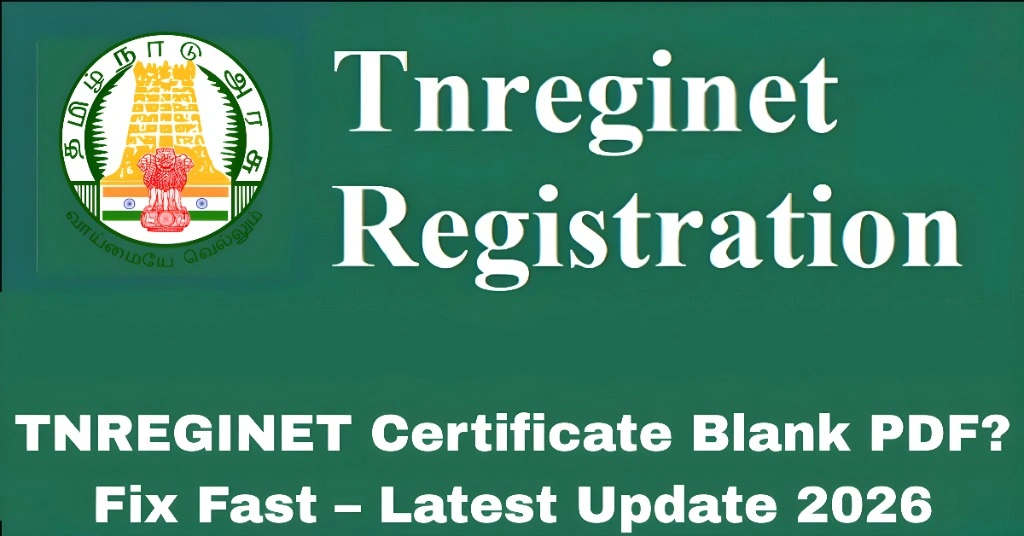
If you downloaded your TNREGINET certificate and see a blank PDF, you’re not alone. This issue is common for Encumbrance Certificates (EC), Certified Copies, Sale Deeds, or other property documents.
A blank PDF can occur due to browser issues, incomplete downloads, outdated PDF readers, or pending approval status. Understanding why it happens and how to fix it quickly ensures you get a valid, printable certificate without visiting the Sub-Registrar Office.
This guide explains why TNREGINET certificates appear blank, how to fix them fast, and tips to prevent this problem in the future.
Quick Fix
To fix a blank TNREGINET PDF:
Most blank PDF issues can be resolved within minutes using these steps.
You can also read: Convert TNREGINET PDF to Printable Format – Latest Update 2026
Why TNREGINET Certificates May Show Blank PDFs
| Reason | Explanation |
|---|---|
| Pending or Processing | Certificates not fully approved cannot display content |
| Incomplete Download | PDF partially downloaded or interrupted |
| Browser Issues | Some browsers cannot render PDF properly |
| Outdated PDF Reader | Older software may fail to display modern PDF features |
| Pop-Up Blocked | Certificates may open in a new window blocked by browser |
| Mobile Compatibility | Some mobile devices do not render PDF correctly |
| Corrupted File | Original file may be damaged |
Step-by-Step Fix for Blank TNREGINET PDF
Step 1: Verify Certificate Status
- Log in to TNREGINET.
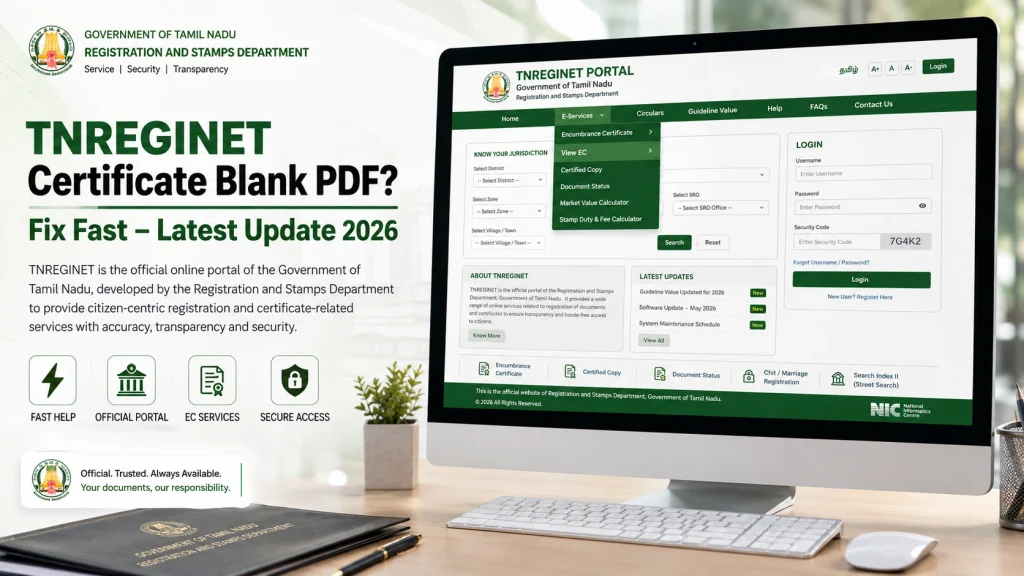
- Check the certificate status under E-Services → Document Status.
- Only Approved or Completed certificates can be viewed or downloaded properly.
Step 2: Re-download the Certificate
- Go to the certificate download section.
- Select the correct SRO, survey number, document number, and date range.
- Download a fresh PDF.
Step 3: Open with a PDF Reader
- Use Adobe Acrobat Reader, Foxit PDF Reader, or another updated PDF software.
- Avoid opening PDFs directly in some browsers if blank issues persist.
Step 4: Use a Different Browser
- Google Chrome, Mozilla Firefox, or Microsoft Edge work best.
- Clear browser cache and cookies to prevent rendering issues.
Step 5: Enable Pop-Ups
- TNREGINET often opens certificates in a new window.
- Allow pop-ups for TNREGINET in browser settings.
Step 6: Try Another Device
- Desktop or laptop is preferred.
- Mobile devices may sometimes fail to display complex PDFs.
Step 7: Check File Size
- A 0 KB or very small file usually means an incomplete download.
- Delete the file and download again.
- आप जानकारी डाउनलोड भी कर सकते हैं, अगर आक इसकी जरूरत हो।
Step 8: Print Preview (Optional)
Additional Tips to Avoid Blank PDFs
Common Errors Table
| Problem | Solution |
|---|---|
| Blank certificate page | Re-download PDF using updated PDF reader |
| PDF shows error | Clear browser cache and try a different browser |
| Pages missing | Verify certificate status and date range |
| Cannot open PDF on mobile | Open on desktop or install a PDF app |
| File corrupted | Delete and re-download |
Why Certificates Fail Even After Download
Fixing these factors usually resolves blank PDF problems.
FAQs
Final Words
Blank TNREGINET PDFs are usually caused by certificate status, incomplete downloads, or software/browser issues. The fastest solution is to verify the certificate status, re-download, use an updated PDF reader, and a compatible browser or device.
Following these steps ensures that your TNREGINET EC, certified copy, or property document opens correctly and is ready for printing, verification, or submission.