Troubleshooting TNREGINET Login Errors and Captcha Issues
Easy step-by-step guide to resolving common login and captcha problems
TNREGINET, Tamil Nadu’s online portal for property registration and other essential services, is a great tool to save time and avoid the hassle of physical office visits. However, like all online systems, users sometimes encounter issues while logging in or while solving captcha challenges. If you’re facing login errors or captcha issues, don’t worry — this guide will help you troubleshoot and fix them quickly.
Common TNREGINET Login Errors and How to Fix Them
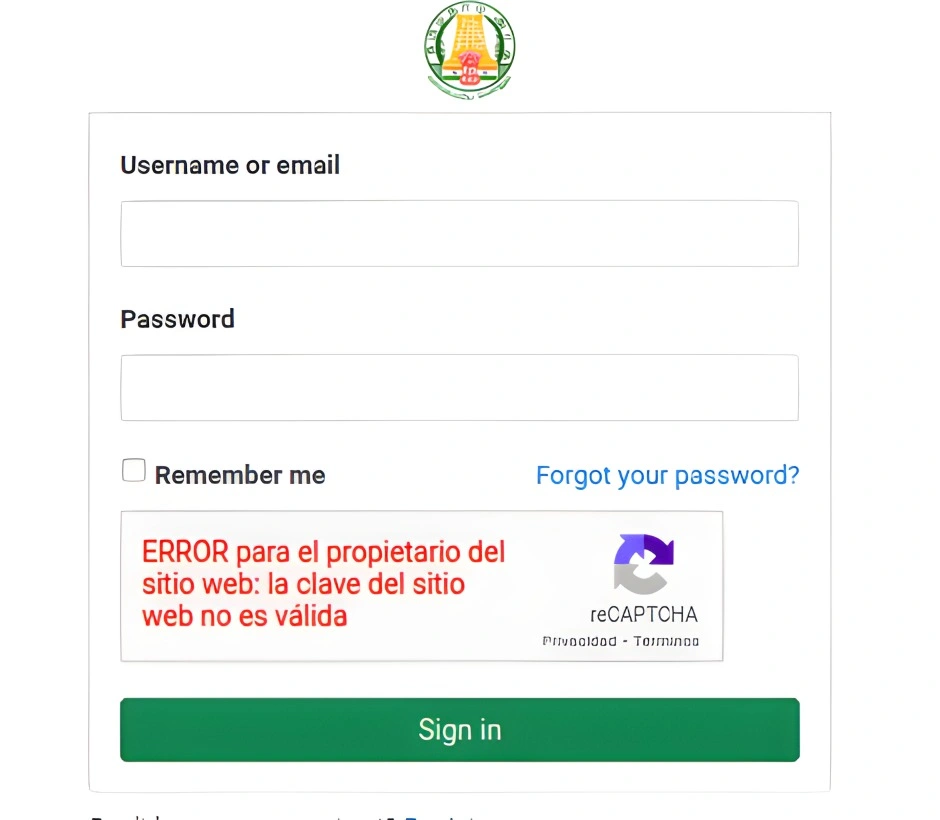
Invalid Username or Password
Problem: This is one of the most common login issues, and it usually happens if you’ve entered an incorrect username or password.
Solution: Double-check your username and password. If you’re unsure, try using the “Forgot Username/Password” option on the login page. Ensure that your Caps Lock is turned off, as passwords are case-sensitive.
Account Lock or Suspension
Problem: If you’ve entered the wrong login details multiple times, your account may get locked temporarily as a security measure.
Solution: Wait for a few minutes and try again. If your account is still locked, contact TNREGINET support or visit the Sub‑Registrar’s Office for assistance.
Server Timeout or Website Unavailable
Problem: Sometimes, the TNREGINET website may face technical difficulties or server overload, making it difficult for you to log in.
Solution: Refresh the page or try logging in at a different time. You can also clear your browser cache and cookies, which often resolves server-related issues.
Tip: Use Google Chrome or Mozilla Firefox for a smoother login experience, as these browsers tend to work best with TNREGINET.
Invalid OTP (One-Time Password)
Problem: TNREGINET often uses OTPs for verification during the login process, and if you’re not receiving the OTP, it may be due to several reasons.
Solution: Ensure that your mobile number is correctly linked to your account and is able to receive OTPs. If you still don’t get the OTP, try resending it after a few minutes. If the issue persists, contact TNREGINET support for help.
You can also read:How to Download TNREGINET EC for Multiple Years Update 2026
Troubleshooting Captcha Issues
Captcha Not Showing or Loading
Problem: Sometimes, users may face issues where the captcha (the distorted text or image you must enter to prove you’re not a robot) doesn’t appear on the screen.
Solution: Refresh the page. If that doesn’t work, try using a different browser or device. Make sure your internet connection is stable as slow connections can cause delays in loading the captcha.
Incorrect Captcha Entry
Problem: If the captcha characters are difficult to read, entering the wrong code can prevent you from proceeding.
Solution: Look carefully at the captcha. If the characters are too unclear, there is usually an option to refresh the captcha or choose an audio version. You can also click on the refresh icon next to the captcha to get a new set of characters.
Captcha Not Recognizing Input
Problem: Sometimes, even if you’ve typed the correct captcha code, the system still doesn’t recognize it.
Solution: Clear your browser cache and cookies. Disable any ad-blocking extensions that could interfere with the captcha system. If you’re using a VPN, try disconnecting it and accessing the portal without it.
aptcha Stuck on Loading Screen
Problem: You may encounter a loading screen that doesn’t seem to progress after entering the captcha code.
Solution: This is often caused by a slow or unstable internet connection. Try refreshing the page or switching to a faster network. Also, check if your browser has any JavaScript issues, as captcha relies on it to function properly.
Additional Tips to Avoid Login and Captcha Issues
Clear Your Browser Cache and Cookies Regularly
Over time, cached data and cookies can cause login and captcha issues. It’s a good idea to clear them regularly to keep your browsing experience smooth.
Disable Pop-up Blockers
Sometimes, pop-up blockers can interfere with the captcha or login process. Disable them temporarily to see if it resolves the issue.
Use a Stable Internet Connection
A strong, stable connection is essential for smooth login and captcha processing. Avoid using public or unstable Wi-Fi networks.
Use the Latest Version of Your Browser
Ensure that your browser is up to date. An outdated browser can cause compatibility issues with TNREGINET.
When All Else Fails
If you’ve followed all the troubleshooting steps and are still experiencing login or captcha issues, it may be time to reach out for professional help. Contact TNREGINET support or visit the Sub‑Registrar’s Office for assistance. They will be able to guide you and help resolve the problem efficiently.
FAQs
Final Words
TNREGINET is a powerful portal that can simplify property and legal processes, but occasional login and captcha issues can be frustrating. By following the troubleshooting steps mentioned above, you can resolve most common problems. Remember to always use a stable internet connection, clear your browser cache, and keep your login details safe.
If the problem persists, don’t hesitate to reach out to TNREGINET support for further assistance. Happy online registration!