Missing EC Data: What to Do When Data Missing on TNREGINET
If you’ve tried to download your Encumbrance Certificate (EC) from TNREGINET and some transactions aren’t showing up, you’re not alone. Many property owners face this problem. In this article, you’ll learn why transactions may be missing and exactly what you can do to fix it — step by step.
What Does “Missing EC Data” Mean?
When you generate an EC, it should list every transaction recorded against your property for the selected period — such as sales, mortgages, gifts, or transfers.
But sometimes:
Missing data doesn’t always mean the transaction didn’t happen — it often means something stopped it from appearing in the online search.
You can also read: EC Search Failures on TNREGINET: Causes & Fixes Update (2026)
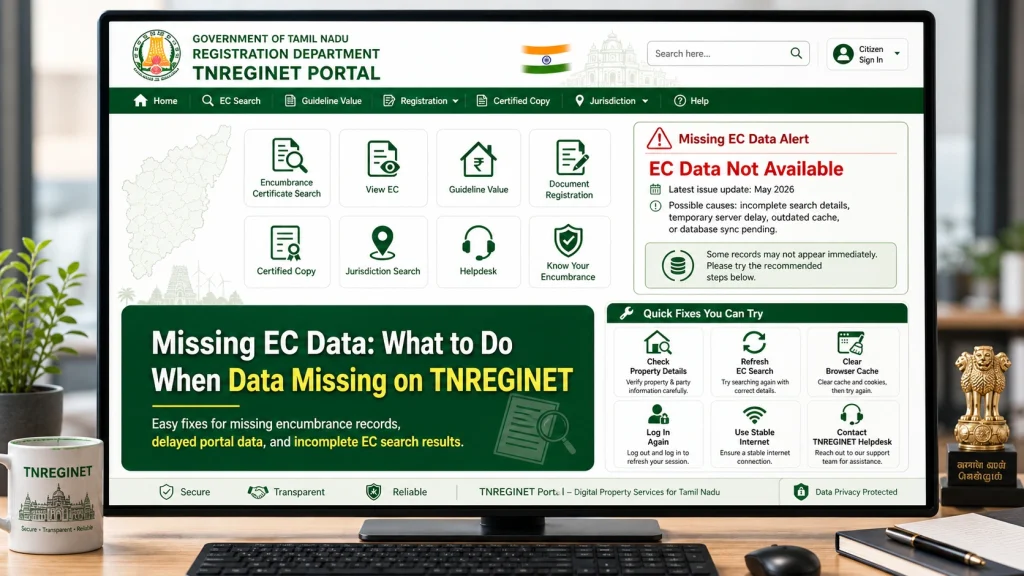
Common Reasons Transactions Are Missing
Here are the most common causes of missing data in your EC:
Incorrect Search Inputs
If you enter wrong or incomplete search details like:
…the system might not show all records.
Tip: Always check the details exactly as they appear on your property deed or document.
Using Too Short a Date Range
Fix: Choose a longer range like 20–30 years to capture older entries.
Searching Only by One Method
TNREGINET lets you search EC in two ways:
Sometimes one method may not show data that the other does.
Fix: If survey search doesn’t show results, try document number search — and vice versa.
Older Records Not Yet Digitized
Some older transactions — especially those from years before online registration — may not have been uploaded yet to the digital system.
This is common for older properties or very old deeds.
Fix: Visit your local Sub‑Registrar Office (SRO) and ask them to check the manual records for the missing entries.
Data Entry Mistakes at the Office
If the registration staff entered wrong information at the time of registration, it may not show up in the online EC.
Examples of mistakes:
Fix: Request a review or correction from the SRO.
What You Can Do When Transactions Are Missing
Step 1: Double‑Check Search Details
- e records are missing:
- Re‑confirm the survey number
- Check the document number
- Verify the zone, district, and SRO
- Expand the date range
- Often, a small typo prevents the system from showing results.
Step 2: Try Both Search Methods
- If one search method didn’t show results, try the other:
- Survey number search: Useful for land and rural properties.
- Document number search: Often shows results for registered deeds like sale deeds or mortgages.
- Try both before moving to deeper checks.
Step 3: Check for Older Records Manually
- missing entries and your property is older, visit the Sub‑Registrar Office where the property was registered.
- At the office:
- Ask them to search manual registers
- Provide your original documents
- Request them to check for missing entries
- Offline records still exist even if they’re not in the online system yet.
Step 4: Request Correction of Mistakes
- a is due to incorrect or incomplete details, you can request a correction.
- What to do:
- Visit the SRO
- Submit your property documents
- Request them to update the correct information
- Ask them to re‑upload or re‑issue the EC
- This helps fix issues caused by data entry errors.
Step 5: Track Your EC Request
- some entries are missing, check the EC request status on the TNREGINET portal.
- Look for:
- “Processing”
- “Ready for download”
- “Corrections required”
- The status may give clues about missing data or delays.
FAQs
Final Words
a can be frustrating, but it doesn’t mean the data doesn’t exist. Most of the time, it’s a search issue, date range issue, or a missing upload in the system.
Here’s what you should always do:
Verify search inputs
Try both survey and document searches
Expand date range
Visit the Sub‑Registrar Office if needed
Request correction for data errors
With these steps, you can find and fix missing entries so your Encumbrance Certificate is complete and valid.