EC Search Failures on TNREGINET: Causes & Fixes Update (2026)
Searching for an Encumbrance Certificate (EC) on the TNREGINET portal should be simple. But many users face search failures, errors, or “no records found” messages even when their property details are correct. This guide will help you understand the common reasons behind these search failures and show you easy ways to fix them.
What Does “EC Search Failure” Mean?
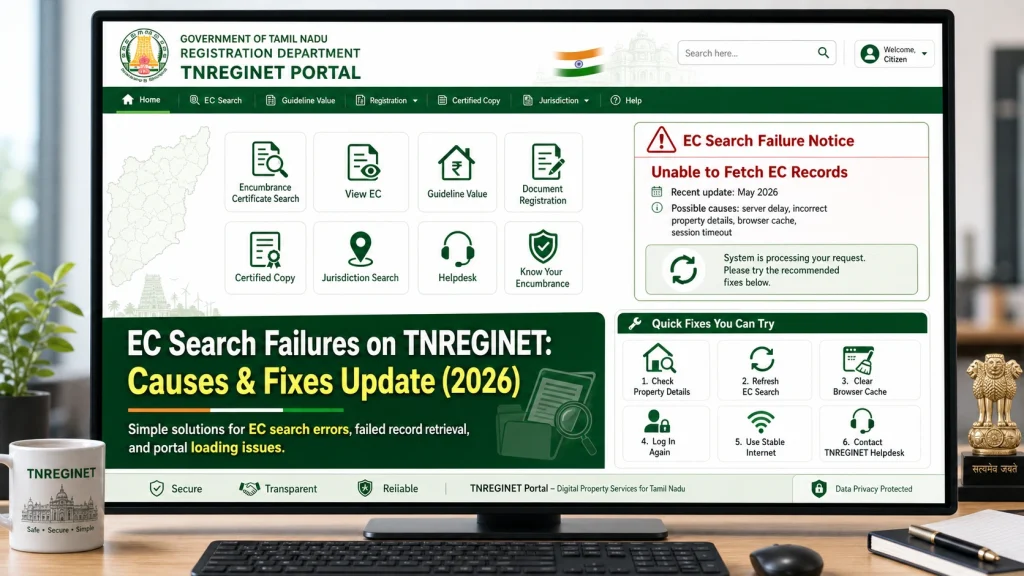
When you try to search for an EC on the TNREGINET portal and the system does not show your results, it is often called a search failure. This can happen even when the property was registered and should appear in the system. Search failures can occur for many reasons — some technical and some related to how the data is entered.
Understanding these reasons will help you troubleshoot and successfully get your EC.
You can also read: TNREGINET EC: How to Resolve Captcha Timeout Issues (2026)
Incorrect Search Details
One of the most common reasons for an EC search failure is entering incorrect or incomplete search details. Even small mistakes in details can result in no records being found.
Key Points:
Zone:
Ensure you are selecting the correct registration zone where your property is located. Sometimes properties can belong to different zones, and this can affect the search.
District:
If you’re unsure of the district, you may end up in the wrong search area. Double-check the official documents for the correct district.
Sub‑Registrar Office (SRO):
This is crucial. Ensure you know which Sub-Registrar Office handles your property’s registration. Inaccurate SRO info can cause a failed search.
Survey Number:
The survey number is essential for properties in rural or suburban areas. Ensure the number is entered exactly as it appears on your documents.
Document Number:
If you’re searching by document number, check if the number is typed correctly and the document is registered under the correct office.
Fix: Always double-check the zone, district, SRO, survey number, and document number before starting the search.
Wrong Date Range
When searching for property records, using the wrong date range can prevent older records from showing up. Many users restrict the search to a small window, such as 5 or 10 years, but this could be too narrow if the property was registered earlier.
Key Points:
Fix: Try expanding the date range to 20–30 years or more to capture older transactions. If unsure, use the longest date option available.
Using Only One Search Method
TNREGINET allows you to search using two methods:
Sometimes, a transaction may be available under one search method but not the other. If you’re using only one method and facing issues, you could be missing records available via the other method.
Key Points:
Survey Number: Most useful for rural and suburban areas where properties are registered using surveys.
Document Number: More common in urban areas, where properties are typically registered using unique document IDs.
If you don’t know which search method to use, try both to see if one gives you results the other didn’t.
Fix: Always try both survey number and document number to increase your chances of finding the EC details.
Typo or Wrong Format
It may seem like a small mistake, but typos or incorrect formats can stop the TNREGINET portal from returning the correct results.
Key Points:
Survey Numbers:
Even small errors in digits or additional spaces can cause the search to fail.
Document Number:
The document number must be entered exactly as it appears on your registration document.
Date Format:
Ensure that you’re entering the correct year format (e.g., 2020 instead of 20 for the year).
Fix: Copy the document or survey number directly from your registration documents to avoid errors. Also, double-check for any spaces or unnecessary characters.
Browser Issues or Site Glitches
Sometimes the issue isn’t with your data but with the portal itself or your browser.
Key Points:
Cache Issues:
Your browser might be storing old data, causing it to show incorrect or incomplete information.
Browser Compatibility:
Some browsers may not work well with TNREGINET. This can lead to pages not loading properly or search results not displaying.
Extensions and VPNs:
Extensions like ad-blockers or VPNs can interfere with the portal’s functionality and block results from loading.
Fix:
Older Records Not Digitized
Not all records have been digitized yet. If your property transaction is very old, or if the record was registered before the digitization initiative began, it may not be available online.
Key Points:
Digitization Delay
Some records might take longer to be uploaded into the system.
Offline Registrations
Older records, especially those before the 2000s, may not be available online yet.
Fix: If you can’t find an old record online, visit the Sub-Registrar Office directly and request manual verification of the property records.
Temporary Site or Network Issues
At times, the issue could simply be with the TNREGINET portal being temporarily unavailable or facing server issues.
Key Points:
Fix: Try searching again after some time. If possible, attempt the search during off-peak hours when the site is less likely to experience high traffic.=
Error in Government Records
There are times when errors in government data lead to missing records. This can happen if the data was incorrectly entered or there was an issue during the registration process.
Key Points:
Data Entry Issues: Government officials may have entered incorrect information into the database.
Record Updates: If your record was updated or changed recently, it may not reflect accurately in the online portal yet.
Fix: If you believe the data is incorrect, contact TNREGINET support or visit the local Sub‑Registrar Office to request corrections to the record.
FAQs
Final Words
s on TNREGINET can be frustrating, but most of the time they happen because of easy‑to‑fix reasons like incorrect details, limited date range, or browser issues.
Before worrying:
Double‑check your information
Choose a wide date range
Try both survey and document search
Try a different browser or clear cache
Visit the SRO if needed
By doing this, you’ll almost always get the correct EC results you need — without stress.