TNREGINET EC: How to Resolve Captcha Timeout Issues (2026)
Trying to download your Encumbrance Certificate (EC) on the TNREGINET portal and seeing a captcha timeout error can be frustrating — especially when you’re in a hurry. Captcha timeouts happen because the portal’s security feature expires before you finish entering it. But don’t worry — there are easy ways to fix this.
In this guide, you’ll learn why captcha timeouts happen and step‑by‑step tips to prevent them, so you can complete your EC search smoothly.
What Is a Captcha and Why Does It Time Out?
A captcha is a security challenge that confirms you are a human and not a bot. When you search for EC on TNREGINET and reach the captcha, you need to solve it within a set time.
If you take too long, the captcha expires and shows a timeout error. When this happens, you must restart the process or reload the captcha.
This is a common issue, but easy to fix once you know how.
You can also read: How to Export TNREGINET Guideline Value Certificates (2026)
Common Reasons for Captcha Timeouts
Here are the main reasons why a captcha might time out on TNREGINET:
You Spend Too Much Time Filling the Form
If you fill in details (like survey number, district, date) slowly, the captcha may expire before you finish.
The Portal Slows Down
Sometimes the TNREGINET website may be busy or slow, causing delays.
Browser Compatibility Issues
Some browsers or extensions might not load the captcha fast enough.
Network or Connectivity Issues
If your internet connection is slow, the captcha may expire before you submit.
How to Prevent Captcha Timeout Errors
Follow these tips to stop captcha timeout issues when searching EC:
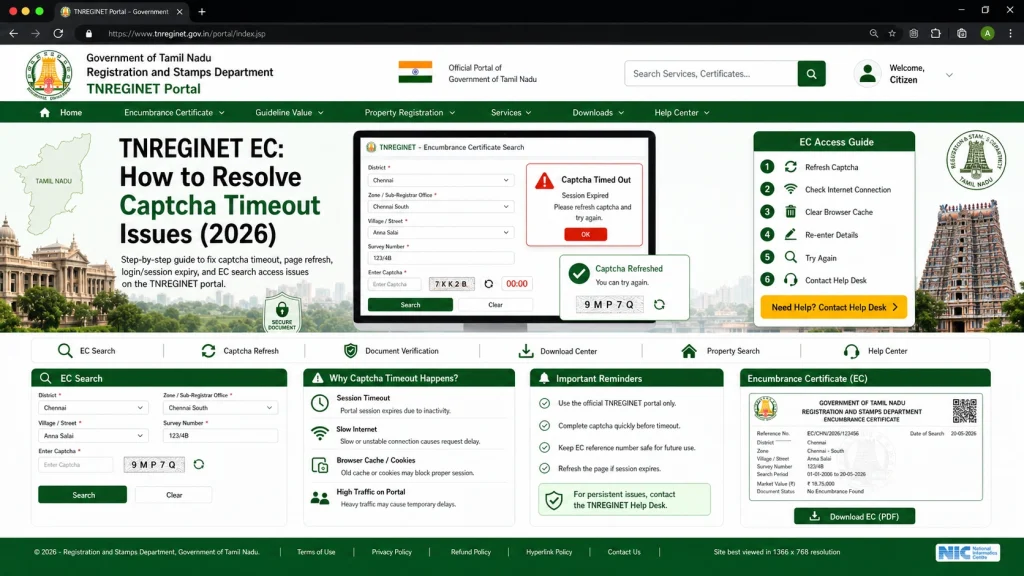
Fill in All Other Fields First
- Before you type the captcha, complete all required fields such as:
- Zone
- District
- Sub‑Registrar Office (SRO)
- Survey number or Document number
- Date range
- Once these are filled, the captcha will load and you can solve it quickly.
Solve the Captcha Immediately
- As soon as the captcha appears, type it right away — don’t wait. Captchas often have a short time limit, so solving quickly prevents timeouts.
Use a Fast Browser
- nsure you are using a reliable browser like:
- Chrome
- Firefox
- Edge
- Avoid older or unsupported browsers, as they may load captcha slowly.
Avoid Browser Extensions or VPN
- ons like ad‑blockers, script blockers, or VPNs may interfere with the captcha script. Try:
- Turning off extensions temporarily
- Disabling VPN
- Using regular browsing mode
- This often solves the problem instantly.
Clear Browser Cache and Cookies
- Sometimes stored cache can cause slow loading of the captcha. Clear your cache and cookies before accessing the EC search.
Use Incognito or Private Mode
- incognito or private mode helps because it:
- Loads pages fresh
- Does not use old cache
- Limits extensions
- This often helps the captcha work smoothly.
Ensure a Stable Internet Connection
- A weak or unstable connection can delay captcha loading. Try:
- Switching to a stronger connection
- Avoiding public Wi‑Fi
- Restarting your router
- आप जानकारी डाउनलोड भी कर सकते हैं, अगर आक इसकी जरूरत हो।
What to Do If You Still Get Timeouts
If captcha still times out:
Reload the Page
Refreshing the page will generate a new captcha. Then:
Try a Different Device
Try During Off‑Peak Hours
FAQs
Final Words
Captcha timeout errors on TNREGINET are common, but almost always easy to fix with the right approach. The key is to focus on speed and browser performance when entering the captcha.
Here’s a quick checklist to avoid timeout problems:
Fill all fields before captcha
Enter captcha immediately
Use a fast and updated browser
Clear cache if needed
Switch off VPN/extensions
Use stable internet
With these simple steps, you’ll be able to search for your EC without interruptions and download your certificate with confidence.