How to Check EC Status and Updates on the TNREGINET Portal
If you’re trying to find the Encumbrance Certificate (EC) status or download your EC online in Tamil Nadu, the TNREGINET portal makes it much easier than going to the Sub-Registrar Office (SRO). This guide walks you through everything step by step, without confusing jargon, just what you need to know.
What Is an Encumbrance Certificate (EC)?
An Encumbrance Certificate (EC) is a legal document that shows all registered transactions on a property, like sales, mortgages, transfers, and more, for a specific period. Banks and buyers usually ask for this before approving loans or buying property.
Think of an EC like a property history report that tells you if there are any legal or financial issues attached to the property.
You can also read: Guideline Value & EC: Know for Tamil Nadu Property (2026)
Why You Should Check EC Status Online
Before we jump into steps, here’s why using the online portal is smart:
Step-by-Step: How to Check Your EC on TNREGINET Portal
Follow these steps to check your EC status and download the certificate.
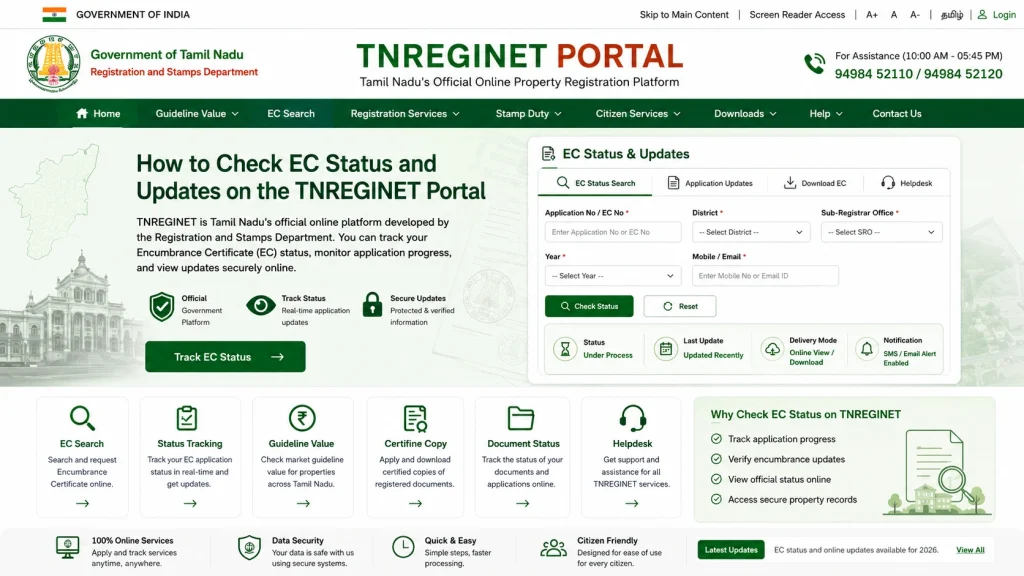
Go to the TNREGINET Portal
Open your browser and visit the official website at tnreginet.gov.in. This is the government’s official platform for property services in Tamil Nadu.
Log In or Register
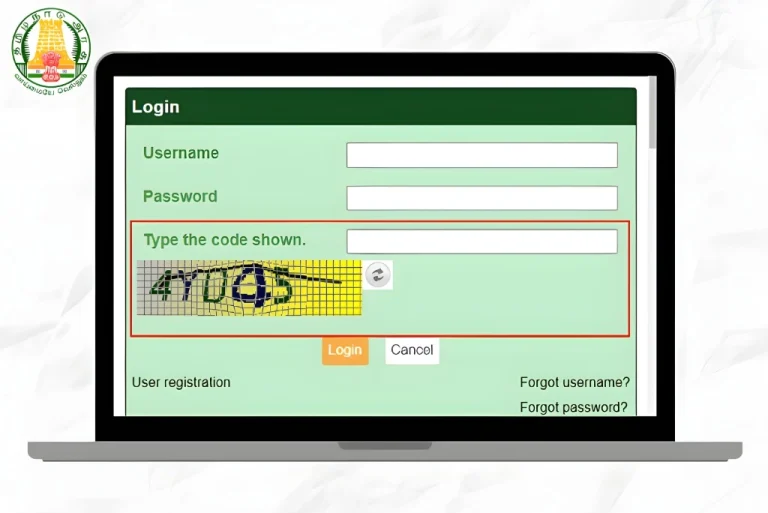
Click Login or User Registration. If you already have an account, enter your username and password. If not, sign up with your email and mobile number (OTP verification). After login, you’ll see the dashboard of services.
Tip: For viewing an existing EC, some parts of the portal may allow guest searches, but logging in is the safest way for status updates and downloads.
Go to the EC Search Area
On the portal, click E-Services, choose Encumbrance Certificate (EC), then select View EC or Search EC. This opens the search form where you can provide your property information.
Choose a Search Method
You’ll see different search options:
Survey-wise Search: Good if you know your property’s survey number
Document-wise Search: Use this if you have the registered document number
Plot/Flat-wise Search: Use this for flats or multi-unit properties
Survey-wise is the most common choice if you don’t know your document number.
Fill in Property Details
Depending on which search type you chose, enter details like:
Be careful with spelling and numbers; even small mistakes can give “no results found.”
Submit and View Results
Click Search, and you’ll see EC results if they exist for your property. You can then:
How to Check EC Status After Applying
If you’ve applied for a new Encumbrance Certificate, go to your TNREGINET dashboard, click My EC Requests or Request Status, and find your application. It should show the processing status (Approved or Under Review).
Note: Processing time can vary depending on how many years you requested and the workload at the SRO.
Tip: Take note of your Request ID when you apply — it helps track status faster.
How to Download EC for Multiple Years
If you want ECs for multiple years, use the From Date – To Date option wisely. Some older years may require separate searches if the portal splits ECs by decade. After searching, you can download all PDFs individually or merge them using free PDF tools.
Tips for a Smooth EC Search
FAQs
Final Words
Checking your EC status online on TNREGINET is easy and time-saving once you know the steps. Always double-check property details, note your request IDs, and download your PDFs for safe keeping.
With this guide, you can confidently track EC status, avoid repeated SRO visits, and get your property documents ready for banks or legal needs.