Why Is My EC Download Showing Missing Information? Update 2026
Sometimes, when you download your Encumbrance Certificate (EC) from TNREGINET, you may notice that some information seems missing or incomplete. This can be confusing, especially if you need the certificate for bank verification, property transactions, or legal purposes. Understanding the reasons behind missing data can help you fix it quickly.
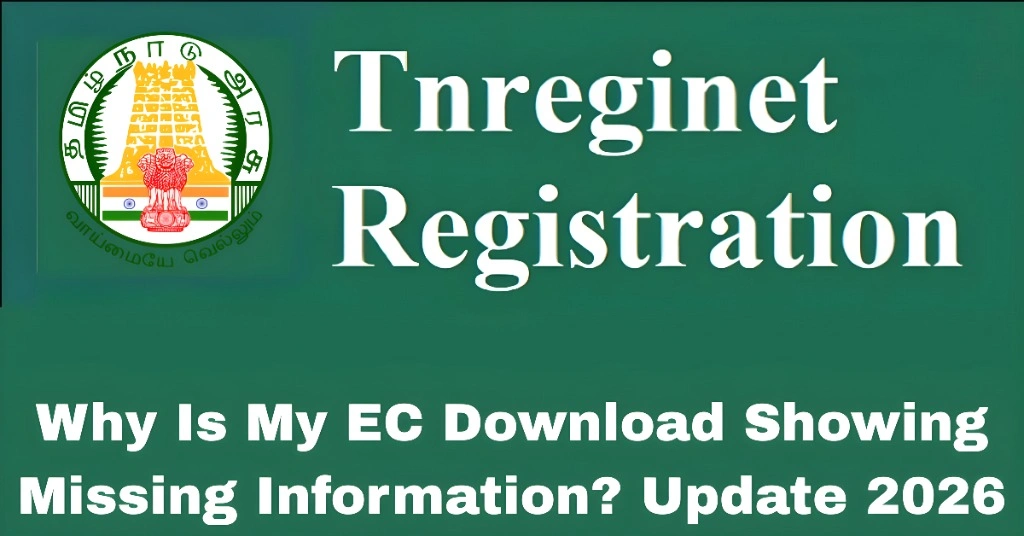
Common Reasons for Missing Information
Incorrect Property Details
Entering wrong survey numbers, subdivision, or district information can lead to partial EC downloads. TNREGINET retrieves records based on the details entered, so even small errors can cause missing entries.
Incomplete Historical Data
TNREGINET ECs only show digitized registered transactions. Older transactions or records from other sub-registrar offices may not be included if they haven’t been digitized yet.
Pending Registrations
Recent property transactions may not appear if they are still under processing at the sub-registrar office.
Portal or Browser Issues
Sometimes, PDFs appear incomplete due to browser compatibility issues or session timeouts. Cached data or interrupted downloads can also cause missing sections.
Document Format or Export Error
EC PDFs may occasionally generate incorrectly, showing blank pages or missing fields because of a system glitch during export.
You can also read: Guideline Value Certificate Download: Step-by-Step Process
Steps to Fix Missing Information
Verify Property Details
Double-check survey number, sub-division, and district. Correct any mistakes and search again.
Use a Compatible Browser
Chrome, Firefox, or Edge usually work best for TNREGINET downloads. Avoid mobile browsers for large or detailed EC PDFs.
Check Application Status
Ensure all recent transactions are processed and approved. Sometimes waiting a few days resolves missing data.
Clear Cache and Retry Download
Clear your browser cache or try downloading from another device to avoid PDF generation issues.
Contact Sub-Registrar or TNREGINET Helpdesk
If data is still missing, submit a query or visit the sub-registrar office to verify historical or pending entries.
Tips to Avoid Missing Information
Understanding Historical EC Data Limitations
Sometimes missing information is not an error but a limitation of the system. TNREGINET EC only includes transactions recorded and digitized in the official database. Transactions registered offline or in different sub-registrar offices may not appear, which can cause gaps in older ECs. In such cases, a manual verification request is necessary.
What to Do When Recent Transactions Are Missing
If your recent property sale or mortgage is not showing:
Verify that the registration has been completed at the sub-registrar office.
Wait a few days as processing time may delay updates.
Check your application status online to confirm it has been approved.
Contact the sub-registrar if the transaction still doesn’t appear after a reasonable period.
Table: Reasons vs Solutions
| Missing Info Reason | Solution |
|---|---|
| Wrong property details | Verify survey number, subdivision, district |
| Incomplete historical records | Request manual verification from sub-registrar |
| Pending transactions | Wait for registration approval or check status |
| Browser issues | Use Chrome/Firefox/Edge, clear cache, retry |
| PDF generation errors | Retry download or contact TNREGINET support |
Best Practices for Smooth EC Downloads
When to Escalate Issues to the Sub-Registrar
If missing information persists even after retries:
FAQs
Final Words
Missing information in TNREGINET EC downloads can usually be resolved by double-checking property details, tracking application status, and using the right browser. For historical or pending transactions, a manual verification request may be needed.
Following these steps ensures your EC is complete, reliable, and ready for property transactions, legal use, and bank requirements.