EC Shows “No Encumbrance Found”? What to Do Update (2026)
If you tried checking your Encumbrance Certificate (EC) on TNREGINET and it shows “No Encumbrance Found”, don’t panic. This is a common issue, and there are several simple reasons behind it. Here’s what it means and how you can fix it quickly.
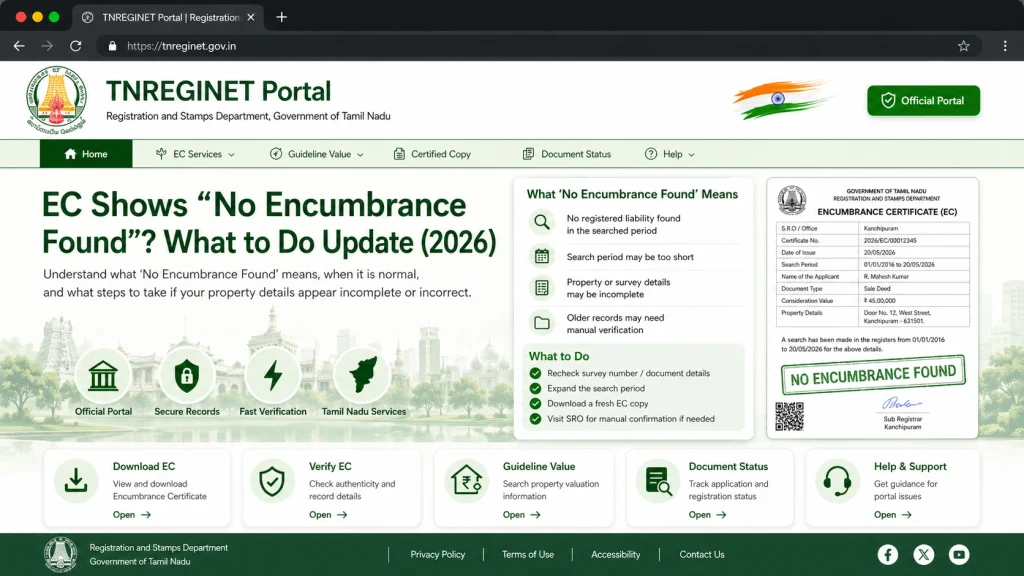
What “No Encumbrance Found” Means
The Encumbrance Certificate (EC) records all registered transactions, such as sale deeds, mortgages, or gifts, for a property.
When the portal shows “No Encumbrance Found”, it does not always mean the property is free from legal claims. It may simply mean:
You can also read: EC Downloaded But Bank Rejects? How to Fix It Fast (2026)
Common Reasons EC Shows “No Encumbrance Found”
Wrong Survey or Document Details
Even a small error in survey number, plot number, document number, or Sub-Registrar Office (SRO) can prevent records from appearing.
Incorrect Date Range
By default, TNREGINET shows EC records only for the period you select. If the date range is too narrow, older transactions may not show.
Property Not Digitized
Older properties or certain rural records may not yet be digitized in TNREGINET, leading to “No Encumbrance Found.”
Pending Registration Updates
Recent property registrations may take some time to appear online.
Portal or Server Issues
Temporary portal glitches, heavy traffic, or browser issues can also prevent records from showing.
How to Fix “No Encumbrance Found”
Here’s what you can do to get your EC records successfully:
Step 1: Verify Property Details
Double-check survey number, plot number, owner name, and SRO. Correct details increase the chances of records showing up.
Step 2: Use a Wider Date Range
Select the longest possible date range, for example from 01-01-1975 to today. This will include older records.
Step 3: Try Different Search Options
If survey number search fails, try:
Plot/Flat number search
Different search methods can reveal records that one method misses.
Document number search
Step 4: Clear Browser Cache or Switch Device
Try using a desktop browser instead of mobile. Clear cache or try another browser if the portal is not loading correctly.
Step 5: Visit Sub-Registrar Office (SRO)
If online search still fails, visit the local SRO to request a certified physical EC or help with property verification.
Quick Tips for Smooth EC Search
Always use correct Sub-Registrar Office for the property.
Check spelling carefully — even minor typos can prevent results.
Use full property owner name if possible.
For old properties, request a combined EC covering multiple years.
FAQs
Final Words
Seeing “No Encumbrance Found” in TNREGINET is common and does not always indicate a problem with the property. Double-check details, widen your date range, and try different search methods. If that fails, visit the Sub-Registrar Office for assistance.
Following these steps ensures you get the correct EC and avoid delays in property deals, bank loans, or legal verification.