Process to Download EC to a Newly Registered Property 2026
If you’ve recently bought a property or completed a sale transaction, you might need an Encumbrance Certificate (EC) to verify the property’s legal status. The TNREGINET portal allows property owners and buyers to easily download the EC online, but what happens if the property has just been registered? In this article, we’ll walk you through the process of downloading an EC for a newly registered property.
What is an Encumbrance Certificate (EC)?
An Encumbrance Certificate (EC) is a legal document that provides the history of property transactions, including ownership details, mortgages, and loans associated with the property. It is essential for proving ownership, obtaining home loans, and ensuring that the property is free from any legal claims.
You can also read:How to Interpret TNREGINET’s Guideline Value for Property
How Long Does It Take for an EC to Be Available After Registration?
After a property is newly registered — whether it’s a sale, transfer, or other legal transaction — the EC might not be instantly available on TNREGINET. The time it takes for the Encumbrance Certificate to show up can depend on:
The processing time at the Sub-Registrar Office (SRO).
The system updates that sync the newly registered transaction with TNREGINET.
Typically, it can take anywhere from 3 to 10 days after registration for the EC to become available for download.
Steps to Download EC for a Newly Registered Property
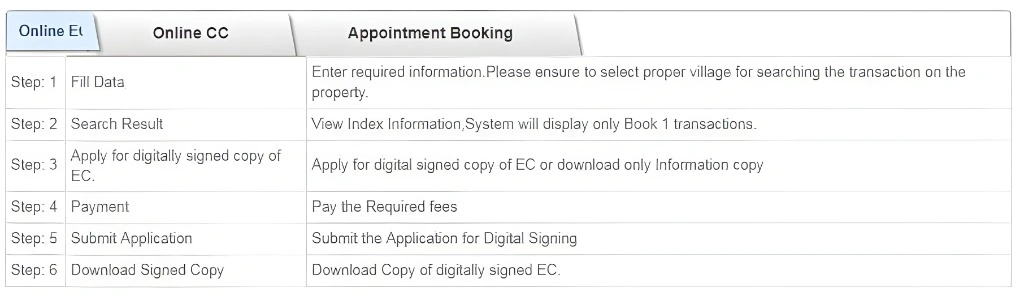
Once the registration process is complete and your property transaction is reflected in the system, you can follow these simple steps to download the EC for your newly registered property:
Step 1: Visit the TNREGINET Portal
Open your web browser and go to the official TNREGINET portal:
https://www.tnreginet.gov.in
On the homepage, look for the “Encumbrance Certificate” section.
Step 2: Log in to Your Account
If you’re already registered on TNREGINET, simply log in with your username and password.
If you’re a new user, click on the “Register” button and create an account using your basic details like email address, mobile number, and address.
Step 3: Navigate to the EC Search Section
Once you’re logged in, follow these steps:
This will direct you to a page where you can search for Encumbrance Certificates by entering the required property details.
Go to the Encumbrance Certificate section and click on “Search/View EC” (or similar options depending on the portal layout).
Step 4: Enter the Property Details
To search for your newly registered property‘s EC, you will need to enter the following details:
Document Number: You might also need to enter the document number or registration number if you have it available.
District Name: Choose the district where the property is located.
Sub-Registrar Office (SRO): Select the Sub-Registrar Office responsible for registering your property.
Village Name: Enter the village or locality where the property is situated.
Survey Number: This is the unique identifier for the land. Make sure to enter the correct survey number as listed on your sale deed or property documents.
Step 5: Select the Date Range
For newly registered properties, select the appropriate date range in which the transaction was completed. If you’re unsure about the exact date, it’s better to choose a wider date range to cover the registration period.
Step 6: Submit and View the EC
After filling in the required details, click Submit or Search to initiate the EC search.
The portal will display the Encumbrance Certificate on the screen if it’s available.
Verify the details on the EC to ensure that the property information is accurate, including the ownership and transaction history.
Step 7: Download the EC
If everything looks correct:
The EC will be available for you to print, save, or share as needed.
Click on the “Download” button to save the EC as a PDF file.
What If My EC Doesn’t Show Up Immediately?
If the EC for your newly registered property doesn’t show up on TNREGINET right away, don’t worry. As mentioned earlier, the EC might take a few days to update in the system. Here’s what you can do:
Wait a few days: It may take some time for the registration to be reflected on the portal.
Check back regularly: Try the search again after a couple of days to see if the EC is updated.
Visit the Sub-Registrar Office (SRO): If it’s been more than a week and the EC still doesn’t show up, visit the SRO where the property was registered to check if the records have been updated.
What to Do If the EC Doesn’t Show the Correct Details?
If the EC does not show up or contains incorrect information, you should:
Double-check the details: Make sure you entered the correct survey number, village, and SRO information.
Request corrections: If the EC shows incorrect details, you can request corrections by visiting the Sub-Registrar Office and providing the necessary documents (such as the sale deed).
Follow up regularly: If the EC still doesn’t reflect correctly after a few weeks, follow up with the SRO for assistance.
FAQs
Final Words
Downloading the Encumbrance Certificate (EC) for a newly registered property on TNREGINET is a straightforward process, but it does require patience due to processing times at the Sub-Registrar Office. By following the steps in this guide, you can easily access your EC once it is updated in the system. Always ensure the details are correct, and if you face any issues, visit the Sub-Registrar Office for assistance.