The TNREGINET EC View Process Explained in Simple Steps 2026
If you are involved in a property transaction in Tamil Nadu, one of the essential documents you’ll need is the Encumbrance Certificate (EC). The TNREGINET portal simplifies the process of obtaining this certificate, which provides proof that a property is free from legal disputes or encumbrances.
In this guide, we’ll walk you through the TNREGINET EC view process, step-by-step, so you can easily check and view the Encumbrance Certificate for your property.
What Is an Encumbrance Certificate (EC)?
An Encumbrance Certificate (EC) is an important legal document that shows all the property transactions (e.g., sales, mortgages, liens) recorded against a property during a specified period. It is typically used to:
You can also read: TNREGINET EC Search: Why Does It Show Different Results 2026?
Why Do You Need to View the EC?
You might need to view or obtain an EC for various reasons:
Property Sale/Purchase: To verify the history and legality of the property you are buying or selling.
Home Loans: Lenders (banks or financial institutions) require an EC to check for any encumbrances before sanctioning a loan.
Legal Clarity: If there are property disputes, an EC helps in resolving ownership issues and proving clear title to the property.
Steps to View the EC on TNREGINET
Now that you know what an EC is and why you need it, let’s look at the simple steps for viewing the Encumbrance Certificate on the TNREGINET portal.
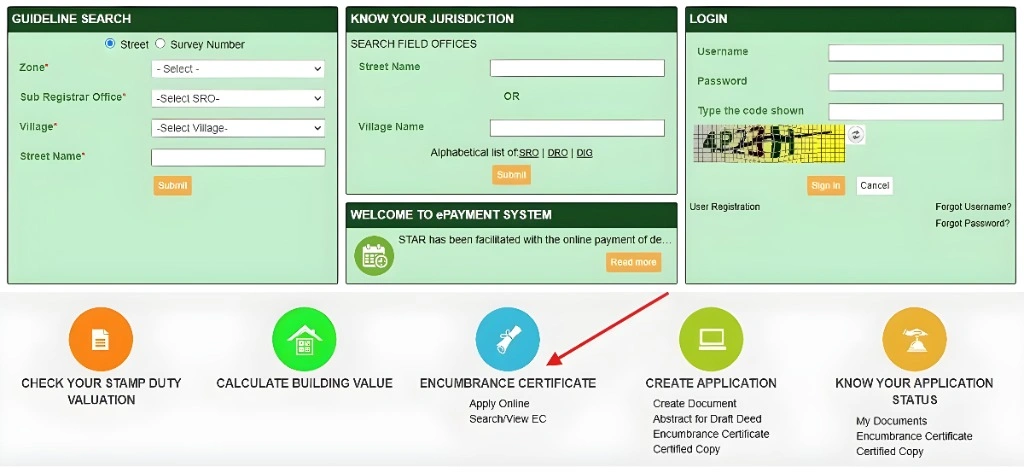
Step 1: Visit the TNREGINET Website
- Go to the official TNREGINET portal:
tnreginet.gov.in
Step 2: Log in to Your TNREGINET Account
- To view the EC, you need to log in with your registered TNREGINET account. If you don’t have an account, you can create one by selecting the “Sign Up” or “Register” option on the homepage.
- Existing Users: Enter your user ID and password to log in.
- New Users: Click on Sign Up to create a new account. You’ll need to provide some basic details like your name, email, and phone number.
Step 3: Go to the ‘Encumbrance Certificate’ Section
- Once logged in, navigate to the E-Services section on the homepage. Under this section, look for the “Encumbrance Certificate (EC)” option.
- Select “EC View” or “Search/View EC” to begin the search process.
Step 4: Select the Search Parameters
- To view the Encumbrance Certificate, you need to enter certain property details in the search form:
- District: Select the district where the property is located.
- Sub-Registrar Office (SRO): Choose the SRO for the area (this is where the property is registered).
- Survey Number: Provide the survey number or document number of the property.
- Date Range: Specify the time period for which you want to view the EC (e.g., last 5 years, 15 years, etc.). Most banks require an EC for a period of 15–30 years.
Step 5: Enter the Captcha Code
- After entering the details, you’ll be prompted to enter a captcha code. This is a security measure to prevent automated searches.
Step 6: Click ‘Search’
- Once you’ve entered the survey number, district, SRO, and date range, click on the “Search” button to proceed.
Step 7: View the EC Details
The portal will display the Encumbrance Certificate based on the details you provided. You’ll be able to see:
- Transaction Details: All the property transactions (sale deeds, mortgages, etc.) recorded for the specified time period.
- Property Ownership: The details of the property owner(s) and any financial liabilities associated with the property.
Step 8: Download the EC (Optional)
- Once the EC is displayed, you can download it in PDF format for your records. The downloaded EC will have the official stamp and will be a valid document for property registration, legal purposes, or loan processing.
- Certified Copy: If you need a certified copy of the EC (which many banks require), you can request it directly from the portal for a small fee. The certified copy will be digitally signed and include a QR code for authenticity.
Tips for Viewing Your EC Successfully
Ensure Accurate Details: Double-check that you have the correct survey number, SRO, and date range to avoid incorrect or incomplete search results.
Use the Right Property Category: Ensure that you select the correct property type (e.g., residential, commercial, agricultural) for accurate results.
Clear Cache and Cookies: If you encounter any issues with the portal, clear your browser cache and cookies or try using a different browser.
Check for Updates: If your property was recently registered or updated, it may take a few days for the EC to appear. Try searching again after a short time.
FAQs
Final Words
The TNREGINET EC view process is a simple, efficient way to access your Encumbrance Certificate for property transactions, legal clarity, and loan applications. By following the steps above, you can easily check, download, and verify your property records online without the need to visit government offices.
If you encounter any issues or need a certified EC copy, don’t hesitate to request it from the portal or contact your Sub-Registrar Office (SRO) for further assistance.