Fixing Blank PDFs in TNREGINET EC Downloads Update 2026
If you’ve ever tried to download the Encumbrance Certificate (EC) from TNREGINET and found that the PDF is blank, you’re not alone. This issue can be frustrating, especially if you need the EC for legal purposes or property transactions. Fortunately, there are several ways to troubleshoot and fix this problem. In this article, we’ll walk you through the common causes of blank PDFs and how to fix them effectively.
Common Causes of Blank PDFs in TNREGINET EC Downloads
Browser Cache and Cookies
Sometimes, the issue can arise due to outdated or corrupted data stored in your browser’s cache or cookies. When you attempt to download the EC, the browser may display a blank PDF because it is not fetching the most up-to-date version of the document.
Incorrect Payment Status
If you’ve paid for the certified EC but haven’t completed the transaction successfully, the PDF may download as blank. In such cases, the system won’t generate the certified EC because the payment process wasn’t finalized properly.
Server Issues on TNREGINET
Sometimes, the problem may not be on your end but with server-side issues at TNREGINET. Temporary glitches or delays in the system can cause issues with PDF rendering and result in a blank EC PDF.
Outdated PDF Reader
If your PDF reader software is outdated or not functioning properly, it might not be able to open or display the downloaded EC correctly. This could result in a blank screen when you try to view the PDF.
You can also read: How to Download EC Certificate on TNREGINET Update 2026
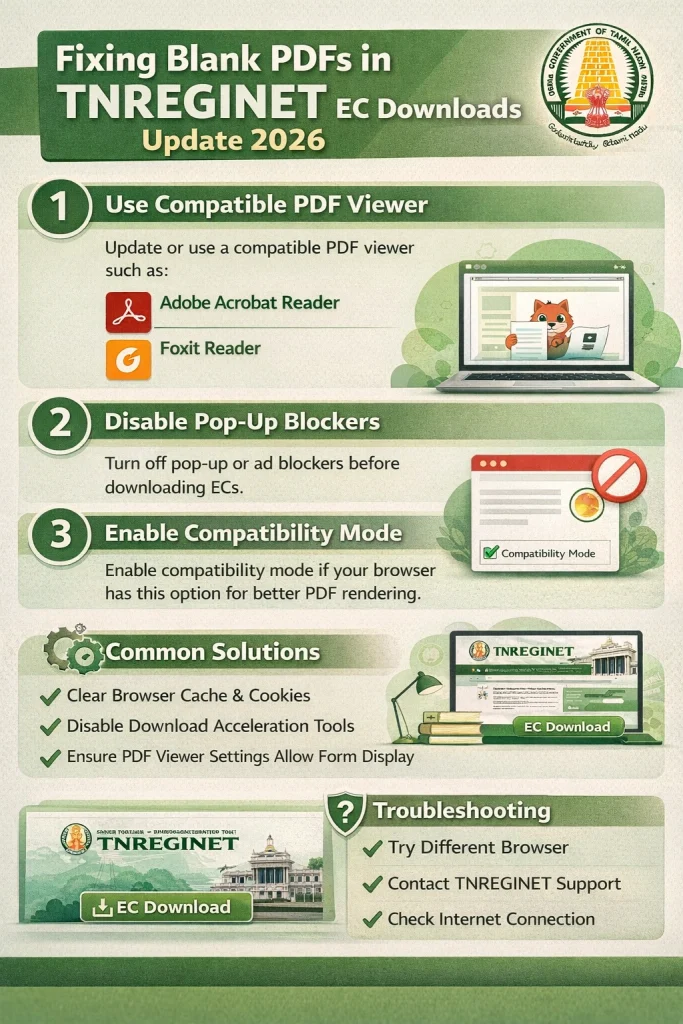
How to Fix Blank PDFs in TNREGINET EC Downloads
Step 1 — Clear Your Browser Cache and Cookies
One of the first things you should do if you’re getting a blank PDF is to clear your browser’s cache and cookies. This helps eliminate any outdated or corrupted files that could be causing the issue.
How to Clear Cache and Cookies:
- Google Chrome:
- Mozilla Firefox:
- Microsoft Edge:
After clearing the cache and cookies, refresh the TNREGINET page and try downloading the EC again.
Step 2 — Check Payment Status
If you’re downloading the certified EC, ensure that the payment process has been completed successfully. If the payment hasn’t been processed properly, the system might generate a blank PDF because the EC is not fully authorized.
How to Check Payment Status:
Go to the Payment Section on TNREGINET.
Check your transaction history for the payment related to the EC download.
If the payment is pending or failed, complete the payment process again.
After successful payment, try downloading the EC once more.
Step 3 — Use Incognito or Private Browsing Mode
If clearing your cache didn’t work, try using Incognito Mode or Private Browsing. This mode doesn’t use cached data or cookies, which can help resolve issues caused by outdated information.
How to Open Incognito Mode:
Now, try downloading the EC again while in Incognito or Private mode.
Step 4 — Try a Different Browser
If the problem persists, it might be related to your browser. Sometimes, certain browsers may not render PDFs correctly, especially if the browser’s settings or extensions interfere with the download process.
Suggested Browsers:
Try switching to a different browser to see if the issue gets resolved. You can also update your current browser to the latest version to ensure compatibility.
Step 5 — Update or Reinstall Your PDF Reader
If you’re able to download the EC but it shows up as blank when opened, the problem might be with your PDF reader. An outdated or malfunctioning PDF reader can cause the file to open improperly.
How to Update or Reinstall PDF Reader:
Adobe Acrobat Reader: Make sure you have the latest version of Adobe Acrobat Reader installed.
Other PDF Readers: If you’re using a different PDF reader, check for updates or reinstall the software.
Once your PDF reader is updated, try opening the EC again.
Step 6 — Check for Server or Website Maintenance
If the above steps don’t resolve the issue, the problem might be on TNREGINET’s side. The website could be undergoing maintenance or experiencing temporary technical difficulties.
What to Do:
Wait for some time and try downloading the EC later.
Check if other users are experiencing the same issue (you can search on forums or social media groups).
Contact TNREGINET support if the problem persists and there’s no update on their website.
FAQs
Final Words
Downloading a blank EC PDF from TNREGINET can be frustrating, but the issue is usually fixable. By following the steps outlined above—like clearing your browser cache, ensuring payment success, using Incognito mode, or switching browsers—you can resolve the problem and successfully download your Encumbrance Certificate.
If the problem persists, contacting TNREGINET support or checking for any server-related issues will help ensure that you can access the document you need.