How to Register on TNREGINET Step by Step Latest Update (2026)
If you want to use TNREGINET services like EC view, document services, marriage-related services, or online property-related tools, you usually need to create an account first. The current TNREGINET homepage includes a User Registration option, and multiple current guides describe the same basic process: open the portal, choose user registration, fill in your details, set your login credentials, and complete verification.
What you should keep ready before starting
What you should keep ready before starting
Before you begin, keep these things ready:
This is based on current TNREGINET how-to guides, which list mobile, email, address, and ID proof as part of the registration form, and on the live TNREGINET site, which clearly says JavaScript must be enabled. An older TN-IGR user-registration manual also shows fields for ID document type, ID number, email, phone number, address, and PIN code.
You can also read: Best Browser for TNREGINET Portal Access Latest Update (2026)
Step 1: Open the official TNREGINET portal
Go to the official TNREGINET website. On the homepage, the Registration menu includes User Registration, and the login section also shows a User Registration link.
Step 2: Click “User Registration”
Once you are on the homepage, click User Registration. Current guides say you may find it either under the Registration menu or near the login area, depending on how the page is displayed.
Step 3: Choose your user type
Now select the right user type. Current public guides mention types such as Citizen, Document Writer, Advocate, and similar categories. The older TN-IGR manual clearly documents at least Citizen and Document Writer registration flows, with extra fields for document writers. For most regular users, Citizen is the correct choice.
Step 4: Create your username and password
Next, create your login details:
The older TN-IGR manual shows this sequence clearly and notes that the password must follow the rules shown on the screen. It also shows that the username can be a mix of letters, numbers, and symbols. Current guides also mention setting a username, password, and security question during registration.
Step 5: Fill in your personal details
After that, fill in your personal information. Based on the older TN-IGR manual and current registration guides, this usually includes:
The manual also notes that mandatory fields are marked with a red star.
Step 6: Enter your address details
Now add your address. The older TN-IGR manual shows fields for state, district, PIN code, and address details. Current guides also say you need to enter your address during user registration.
Step 7: Add extra details only if your user type needs them
If you selected Document Writer or another professional category, you may need to enter additional information. The older TN-IGR manual shows that document writers must add business address details plus department registration details like registration district, attached Sub-Registrar Office, license type, and license number. Regular citizen users do not need that extra section.
Step 8: Enter the captcha and submit the form
Once all your details are filled in, enter the captcha code and submit the form. The older TN-IGR manual shows that after entering the correct captcha, the user can click Complete Registration. Current guides also describe this same step.
Step 9: Complete OTP verification if prompted
Current TNREGINET guides commonly say that after submitting the form, you may receive an OTP for verification and account activation. Some say the OTP goes to the registered mobile number, while others describe mobile and email verification together. The older TN-IGR manual is more basic and simply shows registration completion followed by sign-in, so the exact verification screen may vary by portal version.
Step 10: Sign in and start using portal services
After registration is complete, sign in with your new username and password. The older TN-IGR manual says that once user registration is created successfully, the citizen can use the portal through the Sign in option. The current homepage also shows the sign-in area along with user registration.
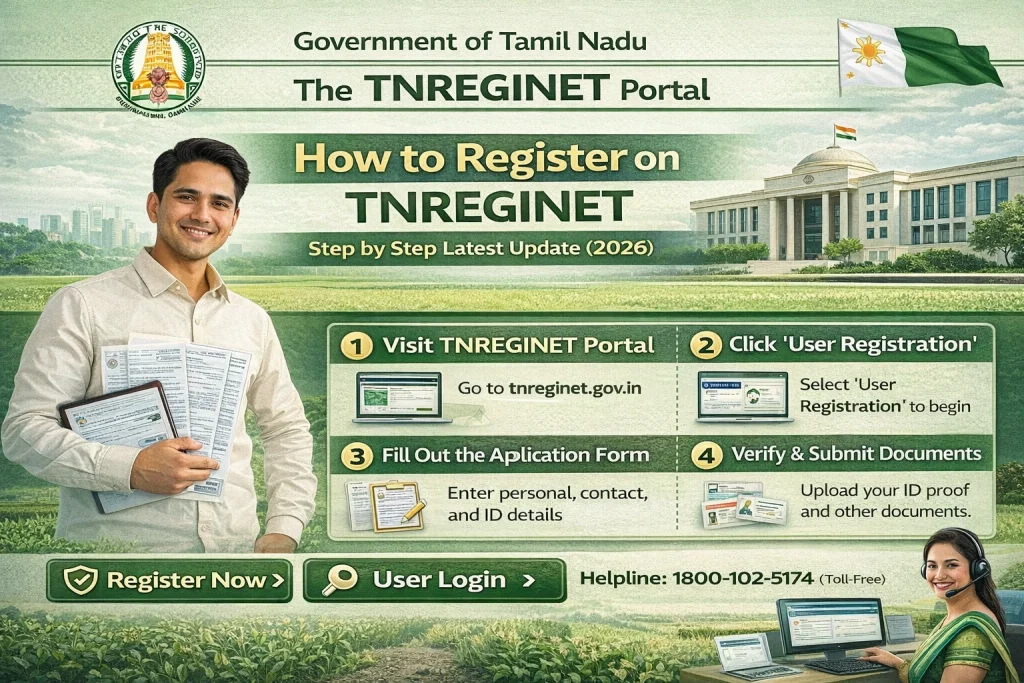
Quick version: TNREGINET registration steps
If you want the short version, here is the full flow:
Easy tips to avoid mistakes
A few small things can save time:
These tips line up with the live TNREGINET JavaScript warning and the registration fields described in the older manual and current guides.
What if TNREGINET registration is not working?
If the page is not loading or buttons are not working, check whether JavaScript is enabled first. The official TNREGINET homepage explicitly says JavaScript must be enabled to continue. If the problem continues, the homepage also lists support numbers for complaints and software queries, including 9498452110 / 9498452120 / 9498452130 and 1800 102 5174, plus the helpdesk contact shown in the portal footer.
FAQs
Final Words
TNREGINET registration is not hard once you know the order. The main steps are simple: open the portal, choose User Registration, fill in your details carefully, complete verification, and sign in. Most articles online explain only the basic flow.
The better approach is to start with the right things ready, use the correct user type, and make sure your browser is set up properly before you begin.